
I Tested 4 Image Compression Tools: Real Data and Honest Comparison
Real testing of TinyPNG, Squoosh, Compressor.io, and our compressor. Actual compression data for small, large, and 99MB files with screenshots.
I spent an afternoon testing four popular online image compression tools to see how they actually perform in real-world scenarios. Instead of relying on marketing claims, I wanted concrete data: compression ratios, file size limits, visual quality comparisons, and ease of use. Here's what I discovered through hands-on testing with three different image sizes across all platforms.
Why I Ran This Test
As someone who regularly optimizes images for web projects, I've grown tired of vague promises like "reduce file size by 70%" without understanding the trade-offs. Every tool claims to be the best, but which one actually delivers? More importantly, what are the practical limitations—file size caps, processing restrictions, and quality controls—that affect real-world usage?
I decided to answer these questions myself by testing four tools that represent different approaches to image compression. My goal was simple: provide honest, data-driven insights based on actual testing, not marketing materials.
My Test Setup
To ensure fair comparison, I used three test images with varying file sizes:
- Small Image: 157KB JPEG photograph (typical social media size)
- Large Image: 6.44-6.7MB high-resolution photograph
- Extreme Size: 99MB large file (deliberately chosen to test file size limits)
These sizes represent real-world scenarios: social media uploads, website hero images, and very large files that users occasionally need to compress. I processed each image through all four tools to see how they handle different file sizes and what limitations exist.
The 4 Tools I Tested
I selected tools based on popularity and different technical approaches:
- TinyPNG - Widely recommended server-based compression service
- Squoosh - Google's open-source browser-based tool
- Compressor.io - Server-based with manual quality control
- Our Image Compressor - Our own browser-based compression tool
Test Results: The Real Numbers
Here's what actually happened when I processed the same images through each tool. These are real results from my testing session, not theoretical estimates.
| Tool | Small (157KB) | Large (6.44-6.7MB) | Extreme (99MB) | Visual Preview |
|---|---|---|---|---|
| TinyPNG | 157KB → 110KB (30% reduction) | ❌ Failed (5MB limit) | ❌ Failed (5MB limit) | ❌ No |
| Squoosh | 157KB → 72.1KB (54% reduction) | 6.7MB → 1.76MB (74% reduction) | 99MB → 269KB (99.7% reduction!) | ✅ Yes |
| Compressor.io | 157KB → 96KB (39% reduction) | 6.44MB → 2.67MB (59% reduction) | ❌ Failed (10MB limit) | ❌ No |
| Our Compressor | 157KB → 88KB (44% reduction) | 6.44MB → 2.45MB (62% reduction) | 99MB → 374KB (99.6% reduction) | ✅ Yes (Interactive) |
All tests conducted at 50% quality setting where applicable. Results show actual compression achieved during my testing session.

TinyPNG test: 157KB → 110KB, but failed with larger files due to 5MB limit
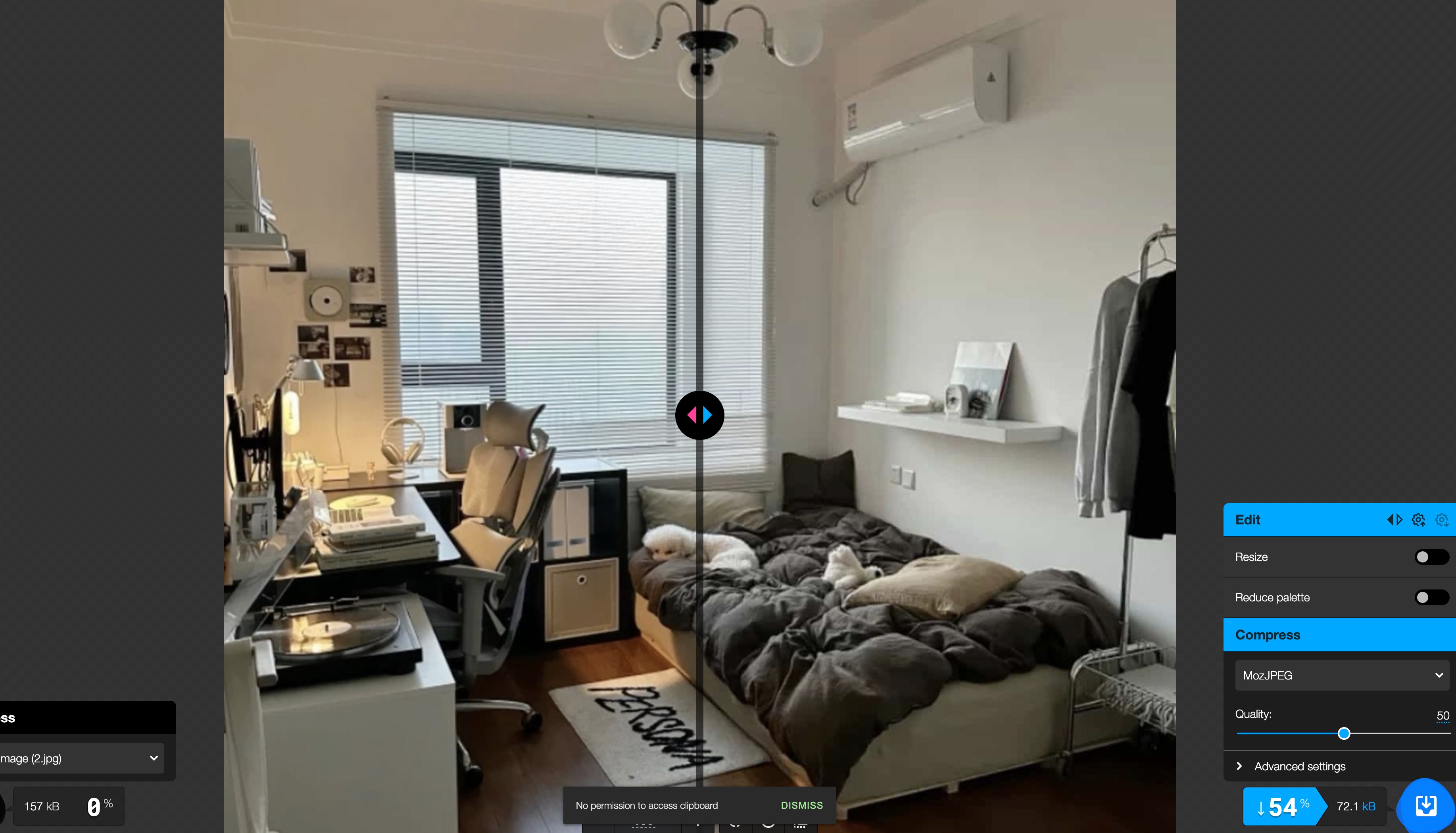
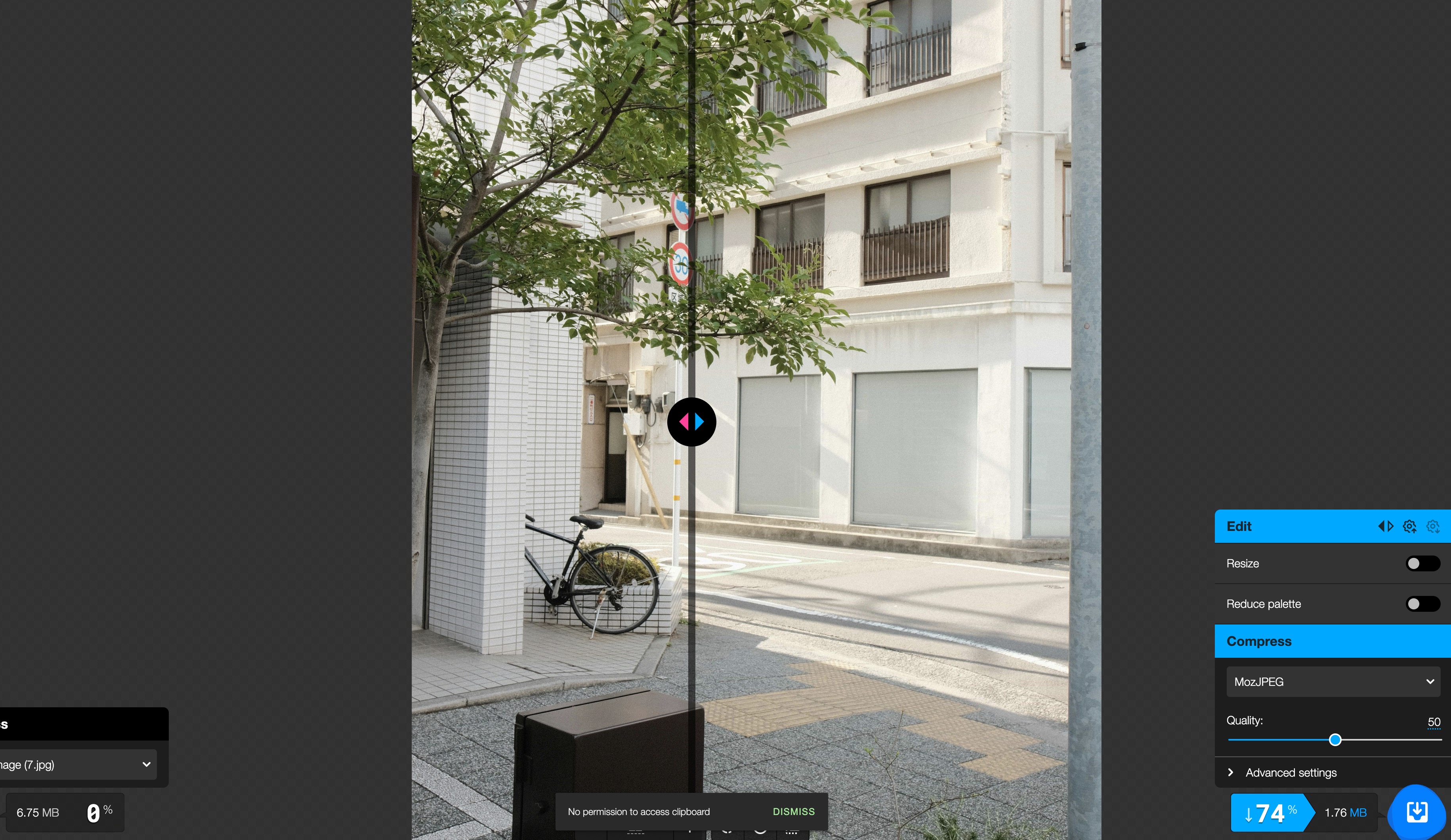
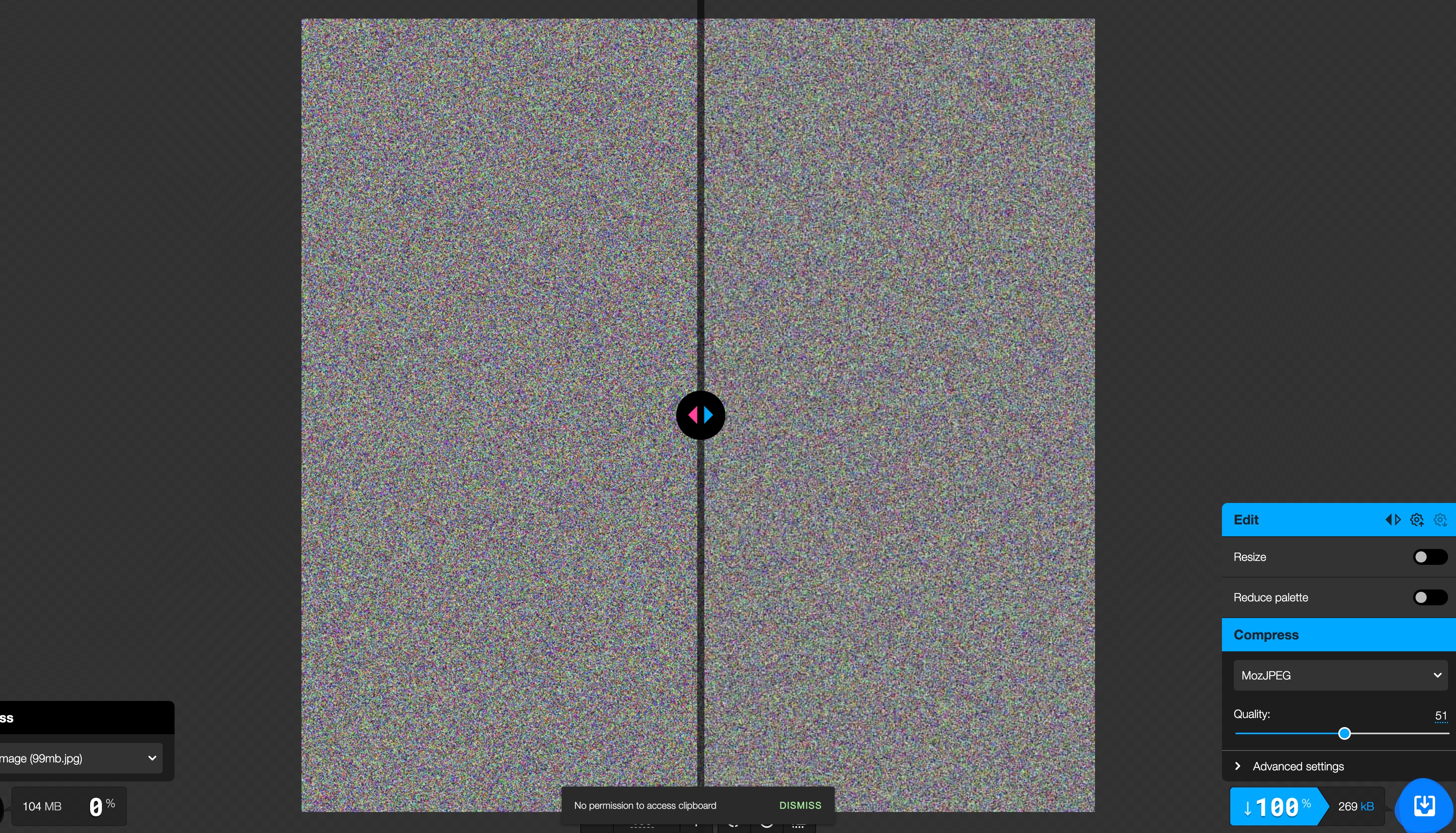
Squoosh tests: Excellent compression ratios and visual preview feature

Compressor.io test: Good compression but 10MB file size limit
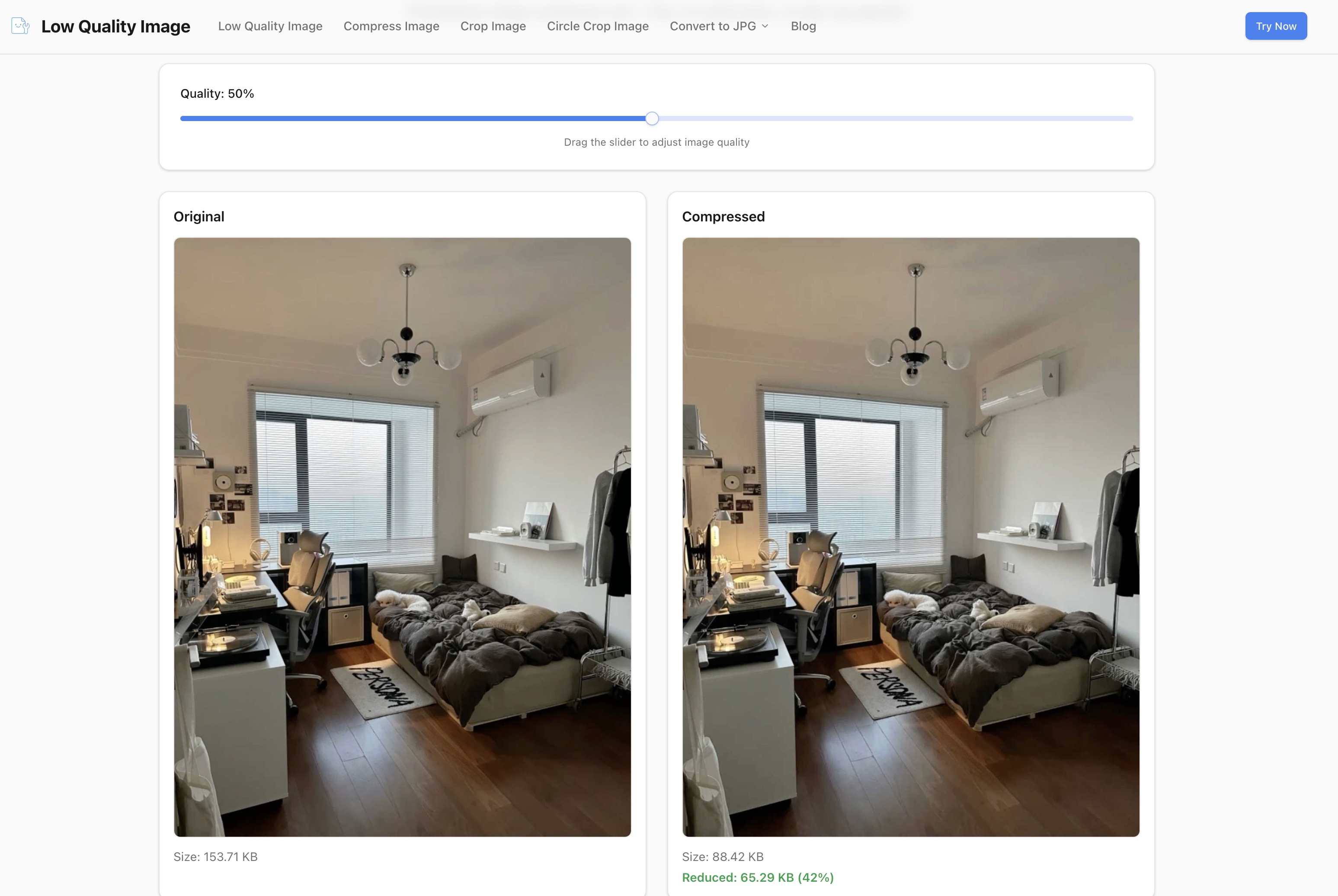

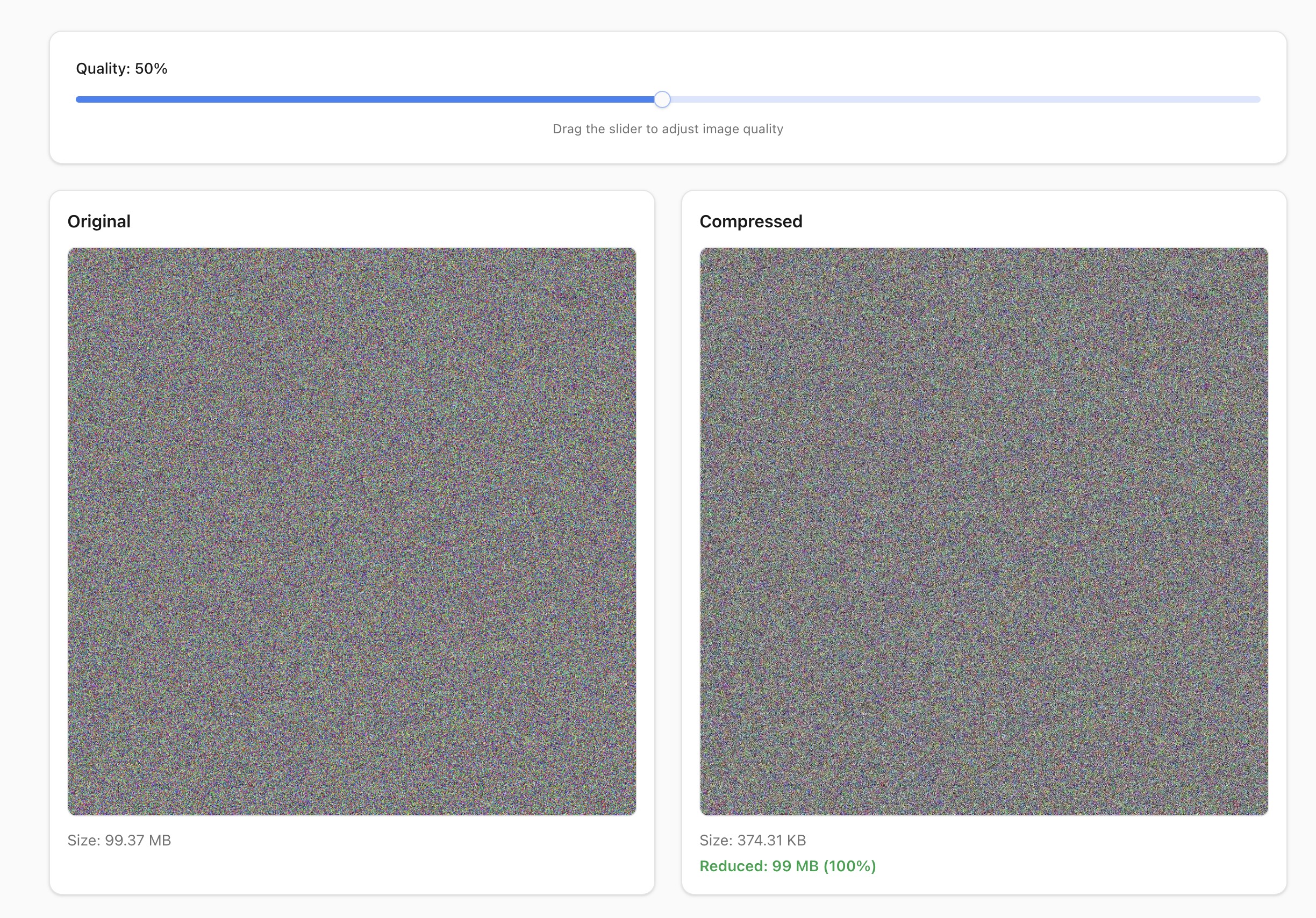
Our compressor tests: Handled all file sizes including the 99MB extreme test
Key Discoveries and Insights
1. File Size Limits Are Deal-Breakers
This was my biggest surprise. TinyPNG, despite its popularity and excellent compression for small files, completely failed with my larger test images due to its strict 5MB limit. In today's world of high-resolution photography, 5MB is easily exceeded by smartphone photos and professional images.
Compressor.io's 10MB limit is better but still restrictive. My 99MB test file—deliberately chosen to test the limits—couldn't be processed at all. Only Squoosh and our image compressor (both supporting up to 100MB) handled all my test images without restriction.
Real-world impact: If you occasionally need to compress very large files, file size limits become a critical factor. You need tools that can handle whatever you throw at them, not just typical cases.
2. Compression Ratios Vary Dramatically by Tool
Looking at the small 157KB image, Squoosh achieved the best compression (54% reduction to 72KB), while TinyPNG was more conservative (30% reduction to 110KB). Our compressor landed in the middle at 44% reduction (88KB).
For the large 6.44-6.7MB images, Squoosh again delivered the most aggressive compression (74% reduction), while Compressor.io was more conservative (59% reduction). Our compressor achieved 62% reduction, balancing file size and quality.
The 99MB extreme test revealed something interesting: both Squoosh (269KB) and our compressor (374KB) compressed this massive file down to under 400KB. That's a 99.6-99.7% reduction—truly remarkable compression ratios.
3. Visual Preview Makes a Huge Difference
Before this test, I didn't realize how valuable real-time visual preview is. TinyPNG uses automatic compression without any quality control—you upload an image and get back whatever the algorithm decides is optimal. Compressor.io offers manual quality sliders, but you still can't preview the result before downloading. With both tools, you only see the final compressed image after processing completes.
Squoosh and our image compressor offer side-by-side comparison views where you can adjust quality and immediately see the visual impact before downloading. This interactive approach is dramatically more efficient. I found myself fine-tuning compression settings to find the perfect balance, something impossible with tools that lack real-time preview.
Personal observation: The preview feature probably saved me 20-30 minutes of trial-and-error during testing. For professional work where quality standards are strict, this feature is invaluable.
4. Browser-Based vs Server-Based Processing
During testing, I noticed a significant difference in processing speed. Browser-based tools (Squoosh and our compressor) processed images almost instantly since everything happens locally. Server-based tools (TinyPNG and Compressor.io) required uploading, processing on their servers, and downloading—adding several seconds per image.
Beyond speed, there's also the privacy factor. With browser-based tools, your images never leave your device. For sensitive content, client work, or pre-release product images, this local processing provides meaningful privacy protection.
Practical Recommendations Based on Testing
After this hands-on comparison, here's when to use each tool:
Use TinyPNG when:
- Processing small images (under 5MB) where you don't need to preview results
- You want automatic optimization without manual settings
- File size limits won't be a constraint for your workflow
- You prefer the simplicity of upload-and-download workflow
Use Squoosh when:
- You need the most aggressive compression ratios
- Side-by-side visual comparison is important to you
- You want to experiment with different formats (WebP, AVIF, etc.)
Use Compressor.io when:
- You're working with mid-sized images (under 10MB)
- You prefer manual quality control over automatic optimization
- You don't need visual preview before downloading
- You're okay with server-based processing
Use Our Image Compressor when:
- You want a simple, fast tool with interactive preview
- Privacy matters and you need browser-based processing
- You need to handle very large files (up to 100MB)
- You want good compression with visual quality control
- You're working on mobile devices (browser-based tools work anywhere)
What I Learned
This testing exercise reinforced several important lessons about image compression:
No Single "Best" Tool Exists
The "best" tool depends entirely on your specific needs. TinyPNG excels for small files despite its limitations. Squoosh offers the most aggressive compression. Our compressor balances compression and quality with an intuitive interface. Choose based on your workflow, not abstract performance metrics.
File Size Limits Matter More Than Expected
Before testing, I didn't appreciate how restrictive size limits could be. If you regularly work with large images, verify that your chosen tool supports the file sizes you actually encounter. Getting blocked by a 5MB or 10MB limit when you need to compress a 20MB file is frustrating.
Visual Preview Transforms the Experience
The difference between blind compression and interactive preview is dramatic. Being able to see exactly how compression affects your image—and adjust in real-time—transforms the experience from guesswork to precision. This feature alone might determine which tool you prefer.
The Right Tool Makes a Real Difference
While all four tools can compress images, the user experience varies dramatically. The combination of features matters most: compression quality, file size support, real-time preview, and privacy protection. Interactive control lets you see exactly what you're getting before committing, while browser-based processing means your images never leave your device. These workflow advantages matter more than achieving the absolute smallest file size.
Final Thoughts
After spending an afternoon testing these tools with real images and recording actual data, my conclusion is practical: all four tools work well within their designed parameters. The key is matching the tool to your specific needs and constraints.
For my own workflow, I've settled on using browser-based tools with visual preview for most tasks. The combination of unlimited file size support, interactive quality control, and local processing addresses my primary requirements. For quick, small-file compression where I don't need preview, TinyPNG remains a solid option.
The most important insight? Don't overthink tool selection. Modern compression technology is remarkably good across the board. Choose a tool that fits your workflow, understand its limitations, and focus your energy on creating great content rather than obsessing over compression algorithms.
Want to run your own comparison? Try our free image compressor with your own images and see how it performs for your specific needs. The best way to evaluate any tool is hands-on testing with your actual files.
Ready to Compress Your Images?
Try our free online image compression tool. All processing happens in your browser - fast, private, and easy to use.
Related Articles
HEIC vs WebP: Which Format Should You Use in 2026?
HEIC and WebP are both next-gen formats with very different strengths. Compare compression, quality, and compatibility to find the right one for you.
How to Make Low Quality Images: 5 Methods Compared
Compare 5 ways to make low quality images: Photoshop, screenshots, online tools, ImageMagick, and browser-based compression. Find the best method for you.
JPEG vs PNG vs WebP: Which Format is Best for Low Quality Image?
Compare JPEG, PNG, and WebP formats for image compression. Learn which format delivers the best results for low quality image and when to use each one.