
PNG Format Complete Guide: When Should You Use PNG Instead of JPEG?
Deep dive into PNG format: lossless compression, transparency support, PNG-8 vs PNG-24 vs PNG-32, when to use PNG, and optimization tips.
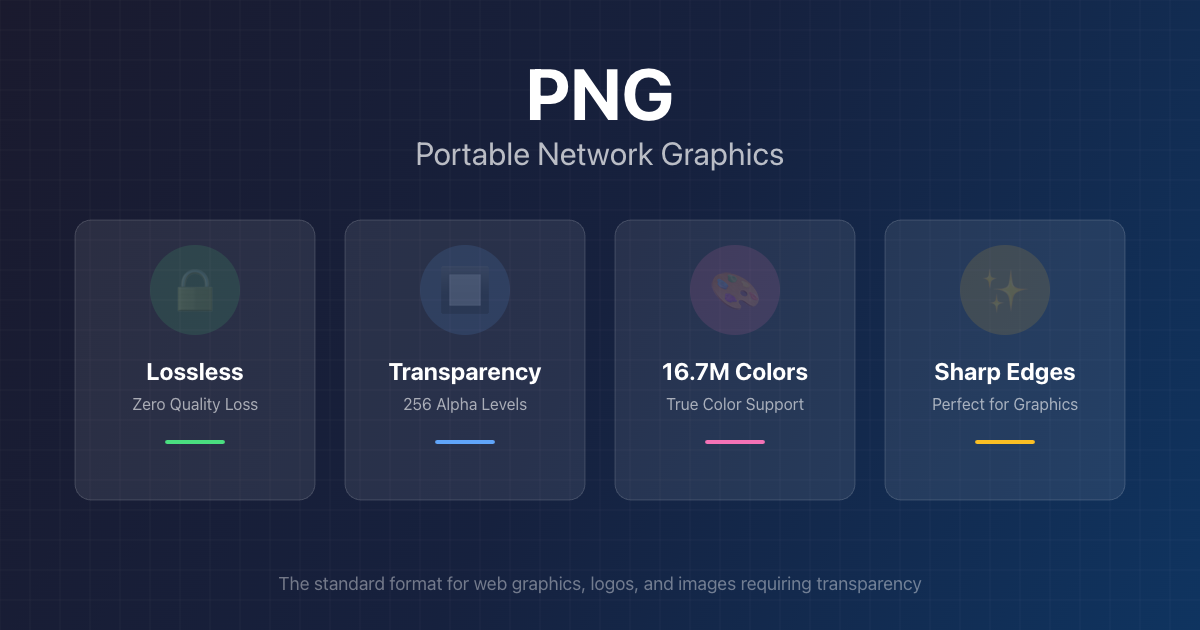
PNG is the go-to format for graphics, logos, and images requiring transparency
You've probably noticed that when you save a logo or screenshot, your image editor often defaults to PNG format. When you download icons from the web, they're usually PNG. And when designers share assets with transparent backgrounds, they almost always use PNG.
But why is PNG so ubiquitous for certain types of images while JPEG dominates for photos? When should you choose PNG over JPEG—and perhaps more importantly, when should you avoid PNG? In this comprehensive guide, we'll explore everything you need to know about PNG format.
What is PNG Format?
PNG stands for Portable Network Graphics, and it was created in 1996 as a patent-free alternative to the GIF format. At the time, the company that owned the LZW compression algorithm used by GIF started enforcing licensing fees, prompting the development community to create a completely open and free format.
Unlike JPEG, which uses lossy compression (discarding some image data to achieve smaller file sizes), PNG uses lossless compression. This means every single pixel of your original image is preserved exactly as it was—nothing is lost or degraded. When you save an image as PNG and then reopen it, you get back the exact same image, bit for bit.
PNG was designed with the web in mind from the very beginning. The "Portable" in its name reflects the goal of creating a format that works consistently across all platforms, devices, and applications—a goal it has achieved remarkably well.
The Technical Features of PNG
PNG's popularity stems from several key technical capabilities that make it uniquely suited for certain types of images:
Lossless Compression (Zero Quality Loss)
The most important characteristic of PNG is its lossless compression. When you save a JPEG, the compression algorithm analyzes the image and throws away data it considers "less important"—subtle color variations, fine details, and gradients that the human eye might not notice. Each time you edit and resave a JPEG, you lose more data.
PNG takes a fundamentally different approach. It compresses the image data without discarding anything. The compressed file can be perfectly reconstructed to the original image. This makes PNG ideal for:
- Images you'll edit repeatedly: No degradation no matter how many times you save
- Graphics with sharp edges: Text, logos, diagrams, and UI elements stay crisp
- Source files and archives: Preserve every detail for future use
Full Transparency Support (Alpha Channel)
PNG's transparency support goes far beyond simple "on or off" transparency. While GIF can only mark pixels as either fully transparent or fully opaque, PNG supports 256 levels of transparency through what's called an alpha channel.
This alpha channel allows for smooth, anti-aliased edges and subtle fade effects. Think about a logo with a soft drop shadow—that shadow gradually fades from opaque to transparent. PNG handles this beautifully, while GIF would show ugly jagged edges.
JPEG, by contrast, doesn't support transparency at all. If you need any transparent areas in your image, PNG (or WebP) is your only option among widely-supported formats.
True Color Support (16.7 Million Colors)
PNG-24 and PNG-32 support 24-bit color depth, which means they can display over 16.7 million colors—the same as JPEG. This makes PNG suitable for complex images with rich color palettes, not just simple graphics.
PNG also supports 48-bit color (16 bits per channel) for professional workflows requiring even greater color depth, though this is rarely needed for web use.
The DEFLATE Compression Algorithm
PNG uses the DEFLATE compression algorithm (the same algorithm used in ZIP files) combined with filtering techniques optimized for image data. The compression works by:
- Filtering: Analyzing each row of pixels and encoding the differences between adjacent pixels
- Compression: Applying DEFLATE to find and eliminate redundancy in the filtered data
This approach works exceptionally well for images with large areas of solid color or repeating patterns—exactly the kind of content found in logos, icons, and UI graphics. It's less efficient for photographs with continuous tonal variations.
PNG-8 vs PNG-24 vs PNG-32: Understanding the Differences
Not all PNG files are created equal. The format has several variations designed for different use cases, and choosing the right one can significantly impact file size.
| Feature | PNG-8 | PNG-24 | PNG-32 |
|---|---|---|---|
| Color Depth | 8-bit (256 colors) | 24-bit (16.7M colors) | 24-bit + 8-bit alpha |
| Max Colors | 256 | 16,777,216 | 16,777,216 |
| Transparency | Binary only (on/off) | None | Full alpha (256 levels) |
| File Size | Smallest | Medium | Largest |
| Best For | Simple graphics, icons | Complex images (no transparency) | Graphics with transparency |
PNG-8: The Lightweight Option
PNG-8 is an indexed-color format, meaning it stores a palette of up to 256 colors and references that palette for each pixel. This makes it extremely efficient for simple graphics with limited colors—think flat-design icons, simple logos, or UI elements.
PNG-8 can include transparency, but only binary transparency (each pixel is either fully transparent or fully opaque). This limitation means PNG-8 isn't suitable for images with soft shadows or anti-aliased edges against transparent backgrounds.
When to use PNG-8: Simple icons, flat graphics, images with few colors where you need the smallest possible file size.
PNG-24: Full Color Without Transparency
PNG-24 supports the full 24-bit color palette (16.7 million colors) but doesn't include an alpha channel. It's essentially a lossless alternative to JPEG—same color depth, but without any compression artifacts.
The trade-off is file size. A PNG-24 file is typically 5-10x larger than an equivalent JPEG because it preserves every detail. This makes PNG-24 impractical for photographs on the web, but valuable for archiving original images.
When to use PNG-24: Screenshots, detailed graphics without transparency, source files for archiving.
PNG-32: Full Color With Full Transparency
PNG-32 adds an 8-bit alpha channel to PNG-24's 24-bit color, enabling smooth transparency with 256 levels of opacity. This is the format most people think of when they say "PNG with transparency."
PNG-32 produces the largest files of all PNG variants because it stores the most data. However, it's essential for any graphic with anti-aliased edges, drop shadows, or gradual transparency effects.
When to use PNG-32: Logos with shadows, UI elements, any graphic needing smooth transparency.
PNG vs JPEG: When to Use Which?
The PNG vs JPEG decision comes up constantly in web development and design. Here's a comprehensive comparison:
| Criteria | PNG | JPEG | Winner |
|---|---|---|---|
| Compression Type | Lossless | Lossy | Depends on need |
| File Size (Photos) | Very large | Small | JPEG |
| File Size (Graphics) | Often smaller | Larger with artifacts | PNG |
| Transparency | Full alpha support | Not supported | PNG |
| Sharp Edges/Text | Pixel-perfect | Blurry artifacts | PNG |
| Photographs | Overkill (huge files) | Ideal | JPEG |
| Repeated Editing | No degradation | Progressive quality loss | PNG |
| Browser Support | Universal | Universal | Tie |
When You MUST Use PNG
There are specific situations where PNG is clearly the right choice—and sometimes the only choice:
1. Images Requiring Transparency
This is PNG's killer feature. If your image needs any transparent areas—whether for a logo that will appear on different colored backgrounds, UI elements that overlay other content, or icons that shouldn't have white boxes around them—PNG is essential.
Examples: Company logos, app icons, profile picture overlays, decorative elements, buttons with rounded corners.
2. Logos and Brand Assets
Logos need to remain crisp and pixel-perfect at all sizes. JPEG's lossy compression creates visible artifacts around sharp edges and solid colors—exactly what logos typically contain. PNG preserves these details perfectly.
Additionally, brand assets are often edited, resized, and repurposed many times. Using PNG ensures the logo never degrades, no matter how many times it's opened and saved.
3. Screenshots (Especially with Text)
Screenshots typically contain text, UI elements, and sharp edges—all things that JPEG handles poorly. A JPEG screenshot will show visible compression artifacts around text, making it harder to read. PNG keeps text crisp and readable.
This is why operating systems default to PNG when you take a screenshot (on Mac, Windows, and most Linux distributions).
4. Graphics with Text
Any image containing text—infographics, diagrams with labels, charts with legends—should be PNG. JPEG's compression algorithm treats text edges as "noise" and blurs them, creating an unprofessional appearance.
5. Icons and UI Elements
Small images like icons are particularly sensitive to compression artifacts. A 32x32 pixel icon saved as JPEG might show noticeable degradation, while PNG keeps every pixel sharp.
6. Images with Flat Colors and Sharp Edges
Illustrations, diagrams, and graphics with solid color areas compress very efficiently with PNG. In some cases, PNG can actually produce smaller files than JPEG for this type of content, while maintaining perfect quality.
When You Should NOT Use PNG
Despite PNG's advantages, there are clear situations where it's the wrong choice:
1. Photographs
This is the big one. Photographs contain millions of subtle color variations and gradients—exactly the type of content that PNG compresses poorly and JPEG handles beautifully.
A typical photograph might be 500KB as a high-quality JPEG but 5MB or more as PNG. That's 10x larger for no visible benefit. The human eye can't distinguish between a well-compressed JPEG photo and a lossless PNG version.
2. Large Images for the Web
Even for non-photographic content, very large PNG files can cause performance problems. A full-screen background image as PNG might be several megabytes, significantly slowing page load times. Consider using WebP format for better compression while maintaining quality.
3. When File Size is Critical
For mobile users on limited data plans, email attachments with size limits, or any situation where bandwidth is constrained, PNG's larger file sizes become a liability. Use JPEG for photos and consider PNG-8 (with reduced colors) for simple graphics.
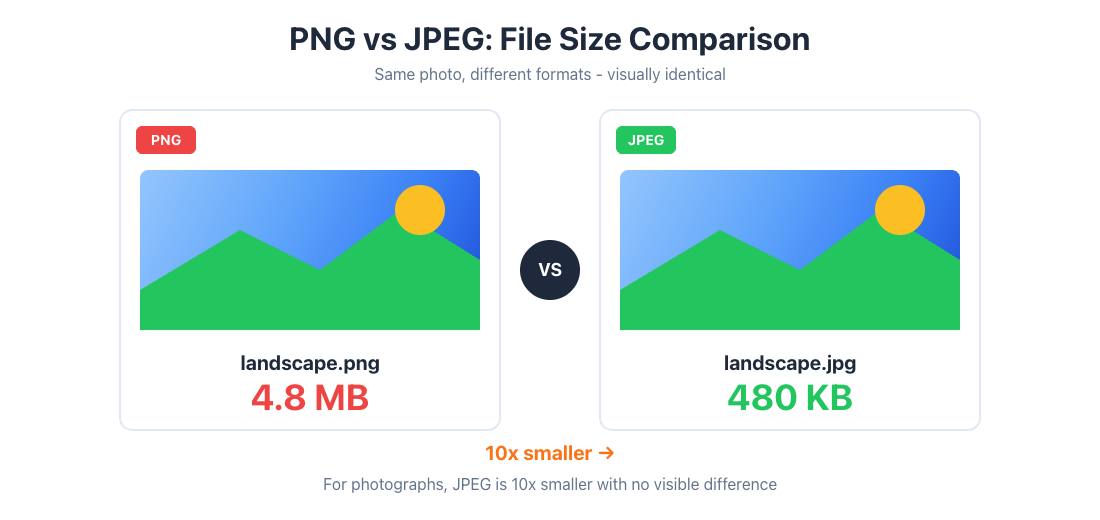
For photographs, JPEG is typically 10x smaller than PNG with no visible quality difference
PNG Optimization Tips
If you need to use PNG but want to minimize file size, here are proven optimization techniques:
1. Choose the Right PNG Type
Don't default to PNG-32 for everything. If your image has fewer than 256 colors and doesn't need smooth transparency, PNG-8 can be dramatically smaller (often 70-80% reduction).
Many image editors and optimization tools can automatically analyze your image and suggest the optimal PNG type.
2. Reduce Color Count
For images that don't need millions of colors, reducing the color palette can significantly shrink file size. A 64-color PNG-8 is much smaller than a 256-color PNG-8, and for simple graphics, the difference is often invisible.
3. Remove Unnecessary Metadata
PNG files can contain metadata like creation date, software used, color profiles, and even thumbnails. Stripping this metadata (called "metadata removal" or "stripping chunks") can reduce file size by a few percent.
4. Use PNG Optimization Tools
Specialized tools like OptiPNG, PNGQuant, or online image compressors can further compress PNG files without any visible quality loss. These tools apply advanced compression techniques that most image editors don't use by default.
5. Consider WebP as an Alternative
WebP offers lossless compression that's typically 26% smaller than PNG, plus it supports transparency. With 97%+ browser support in 2025, WebP is a viable alternative for web use. You can convert your PNGs to other formats when needed.
Quick PNG Optimization Checklist
- 1. Does the image need transparency? If not, consider JPEG.
- 2. Does it have fewer than 256 colors? Use PNG-8.
- 3. Run through an optimizer like TinyPNG or OptiPNG.
- 4. Strip unnecessary metadata.
- 5. For web use, consider WebP with PNG fallback.
The History of PNG: Why It Exists
Understanding PNG's history helps explain some of its design decisions. In the mid-1990s, the GIF format was the standard for web graphics with transparency. But in 1994, Unisys (which held the patent on GIF's LZW compression) began demanding licensing fees from software developers.
The web development community responded by creating PNG as a completely patent-free alternative. The format was designed specifically to:
- Replace GIF for web graphics
- Improve on GIF's limitations (only 256 colors, binary transparency)
- Remain completely free and open forever
- Work identically across all platforms
PNG achieved these goals and has remained the standard for web graphics requiring lossless compression or transparency for nearly 30 years.
PNG in 2025: Still Relevant?
With newer formats like WebP and AVIF offering better compression, you might wonder if PNG is becoming obsolete. The answer is nuanced.
For web delivery, WebP is increasingly replacing PNG thanks to smaller file sizes and equivalent quality. However, PNG remains essential for:
- Source files and archives: PNG's universal support and lossless nature make it ideal for storing original assets
- Compatibility: When you need guaranteed support across all devices and applications, PNG is safer than newer formats
- Editing workflows: PNG is universally supported by image editing software
- Non-web applications: Desktop software, print workflows, and embedded systems often expect PNG
The practical approach is to use PNG for source files and editing, then convert to WebP for web delivery when smaller file sizes matter.
Conclusion: PNG is the Right Tool for the Right Job
PNG isn't trying to be the best format for everything—and that's exactly why it excels at what it does. It's the definitive choice for graphics, logos, screenshots, and any image requiring transparency or lossless quality.
The key is understanding when PNG is the right tool:
- Use PNG for: Logos, icons, screenshots, graphics with transparency, images with text, and any content where quality degradation is unacceptable
- Avoid PNG for: Photographs, large images where file size matters, and situations where JPEG's smaller size outweighs PNG's perfect quality
By matching the right format to the right content, you'll create better websites, smaller file sizes, and sharper images. And when you need to convert between formats, our PNG to JPG converter makes it easy—entirely in your browser, with your files never leaving your device.
Ready to Compress Your Images?
Try our free online image compression tool. All processing happens in your browser - fast, private, and easy to use.
Related Articles
HEIC vs WebP: Which Format Should You Use in 2026?
HEIC and WebP are both next-gen formats with very different strengths. Compare compression, quality, and compatibility to find the right one for you.
WebP Format Deep Dive: Is Google's Next-Gen Image Format Worth Using in 2026?
Deep dive into WebP: 25-35% smaller files, 97% browser support, lossy & lossless modes. Learn when to use WebP vs JPEG/PNG with real examples.
HEIC Format Complete Guide: Why iPhone Uses HEIC and Should You Convert to JPEG?
Deep dive into HEIC format: technical advantages, why Apple chose it, HEIC vs JPEG comparison, compatibility issues, and when to convert.