
HEIC Format Complete Guide: Why iPhone Uses HEIC and Should You Convert to JPEG?
Deep dive into HEIC format: technical advantages, why Apple chose it, HEIC vs JPEG comparison, compatibility issues, and when to convert.
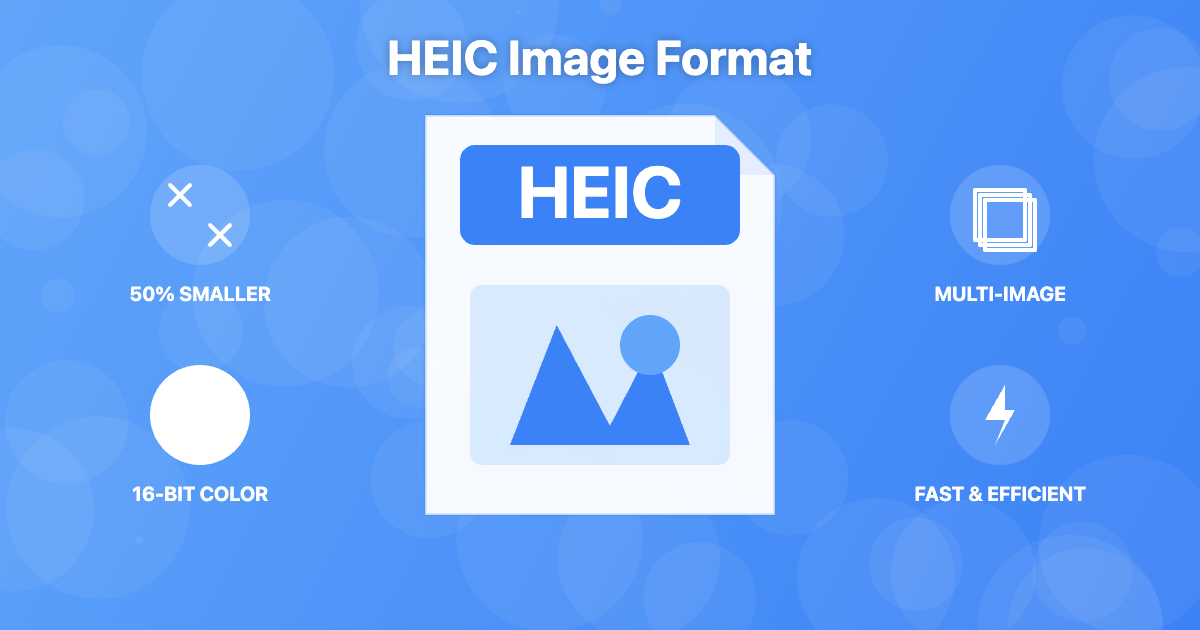
HEIC format has been the default photo format on iPhones since iOS 11
If you've ever transferred photos from an iPhone to a Windows PC or Android device, you've probably encountered files with the .heic extension. These mysterious files often won't open on non-Apple devices, leaving many users frustrated and confused. But what exactly is HEIC, why does Apple use it, and should you convert your HEIC files to JPEG?
In this comprehensive guide, we'll dive deep into the HEIC format, exploring its technical advantages, compatibility challenges, and when you should (or shouldn't) convert to JPEG. Whether you're an iPhone user trying to share photos or simply curious about modern image formats, this guide has you covered.
What is HEIC Format?
HEIC stands for High Efficiency Image Container, and it's based on the HEIF (High Efficiency Image Format) standard developed by the Moving Picture Experts Group (MPEG). Apple adopted HEIC as the default photo format starting with iOS 11 in 2017, replacing the decades-old JPEG format.
Unlike JPEG, which was created in 1992, HEIC is a modern format designed specifically to address the limitations of traditional image formats. It uses advanced compression algorithms based on the HEVC (High Efficiency Video Coding) standard, also known as H.265, which is the same technology used for efficient video compression.
The key innovation of HEIC is that it can store images at significantly smaller file sizes while maintaining the same visual quality as JPEG. This means your iPhone can store more photos without running out of storage space, and you can backup and share photos faster since the files are smaller.
The Technical Advantages of HEIC
HEIC's efficiency comes from several technical innovations that make it superior to JPEG in almost every measurable way:
Superior Compression (50% Smaller Files)
The most significant advantage of HEIC is its compression efficiency. Apple's testing shows that HEIC files are approximately 50% smaller than equivalent JPEG files at the same visual quality. This isn't marketing hype—it's a real, measurable improvement.
For example, a typical iPhone photo that would be 3MB as a JPEG might only be 1.5MB as a HEIC file, while looking identical to the human eye. Over time, this adds up significantly: a photo library that would take 10GB as JPEGs might only need 5GB as HEIC files.
Better Color Accuracy (16-bit vs 8-bit)
JPEG is limited to 8-bit color depth per channel, which means it can display approximately 16.7 million colors. HEIC supports up to 16-bit color depth, allowing for over 281 trillion possible colors. This results in smoother color gradients and more accurate color reproduction, especially in challenging lighting conditions.
While this might sound like overkill, the improved color depth is particularly noticeable in photos with subtle color variations, such as sunsets, blue skies, or skin tones. The difference is most apparent when editing photos or viewing them on high-quality displays.
Transparency Support
Unlike JPEG, which doesn't support transparency, HEIC can store images with transparent backgrounds—similar to PNG files. This makes HEIC more versatile for graphics, screenshots, and design work where transparency is needed.
Multiple Images in One File
HEIC can store multiple related images within a single file container. This feature enables:
- Live Photos: Both the still image and the short video clip are stored efficiently in one HEIC file
- Burst photos: Multiple shots from burst mode can be packaged together
- Image sequences: Animation frames or image variations can coexist in one file
- Depth maps: Portrait mode photos store both the image and depth information together
Non-Destructive Editing
HEIC supports storing editing information alongside the original image data. This means you can crop, rotate, or adjust a photo on your iPhone, and the original unedited image is still preserved within the file. You can always revert to the original without any quality loss.
Why Apple Chose HEIC
Apple's decision to adopt HEIC as the default format wasn't random—it perfectly aligned with several of their product priorities:
Storage Optimization
With iPhone cameras capturing increasingly high-resolution photos (12MP, 48MP, and beyond), storage management became critical. The 50% file size reduction from HEIC means users can store twice as many photos without upgrading to a more expensive model with more storage.
For Apple, this also reduces iCloud storage costs and bandwidth requirements when users backup photos to the cloud. It's a win-win: users get more storage capacity, and Apple's infrastructure costs are lower.
Improved Photo Quality
Apple has always positioned iPhone cameras as professional-grade tools. HEIC's superior color accuracy and support for advanced features like Live Photos and Portrait mode depth maps allow Apple to deliver better photographic experiences without compromising on file size.
Future-Proofing
By adopting a modern, standardized format in 2017, Apple positioned its devices for the future. HEIC is an open standard (unlike Apple's previous proprietary formats), which means it can evolve and improve over time without Apple having to create their own competing standard.

Apple's transition from JPEG to HEIC represented a major leap in mobile photography
HEIC vs JPEG: Detailed Comparison
Let's break down how HEIC and JPEG compare across the key dimensions that matter to users:
| Feature | HEIC | JPEG |
|---|---|---|
| File Size | 50% smaller | Baseline |
| Color Depth | 16-bit (billions of colors) | 8-bit (16.7 million colors) |
| Transparency | ✅ Supported | ❌ Not supported |
| Multiple Images | ✅ Supported (Live Photos, etc.) | ❌ Single image only |
| Compatibility | Limited (mainly Apple devices) | ✅ Universal support |
| Browser Support | Limited (Safari only) | ✅ All browsers |
| Editing History | ✅ Non-destructive edits | ❌ Destructive edits |
| Standard | MPEG HEIF (2015) | JPEG (1992) |
As you can see, HEIC wins in almost every technical category—except compatibility, which is its Achilles' heel.
The Compatibility Problem
Despite its technical superiority, HEIC has one major drawback: limited compatibility outside of Apple's ecosystem. This creates real-world problems for millions of users.
Windows Compatibility
Windows 10 and 11 can open HEIC files, but only after installing additional codecs from the Microsoft Store (HEVC Video Extensions). Many users don't know this, leading to confusion when they try to open iPhone photos on their PC and get error messages.
Even with the codecs installed, not all Windows applications support HEIC. Many photo editors, image viewers, and productivity software still don't recognize the format, forcing users to convert to JPEG anyway.
Android Compatibility
Most Android devices cannot open HEIC files natively. While some newer Android versions (9+) have added support, it's inconsistent across manufacturers and requires specific apps. This makes sharing photos between iPhone and Android users frustrating.
Web Compatibility
Web browsers have been slow to adopt HEIC support. As of 2025:
- Safari: Full HEIC support (unsurprisingly, since it's Apple's browser)
- Chrome: No native HEIC support
- Firefox: No native HEIC support
- Edge: Limited support (requires Windows HEVC codecs)
This means you cannot upload HEIC images to most websites, social media platforms (except those owned by Apple), or web-based email clients. They either reject the file or automatically convert it to JPEG, defeating the purpose of using HEIC in the first place.
When Should You Convert HEIC to JPEG?
Given the compatibility challenges, when does it make sense to convert your HEIC files to JPEG?
Definitely Convert When:
- Sharing with non-Apple users: If you're sending photos to someone with an Android phone or Windows PC, convert to JPEG to ensure they can actually view them
- Uploading to websites: Most web platforms don't support HEIC, so convert before uploading to social media, forums, or any website
- Email attachments: Email clients outside of Apple Mail may not display HEIC previews correctly
- Professional submissions: Photo contests, job applications, or any formal submission will almost always require JPEG format
- Long-term archiving: JPEG's universal compatibility makes it a safer bet for archives you want to access decades from now
- Printing: Most professional print services expect JPEG files
Keep HEIC When:
- Staying within Apple ecosystem: If all your devices are Apple, HEIC offers better quality and smaller file sizes
- iCloud backup: HEIC files take up less iCloud storage space
- Editing photos: HEIC's non-destructive editing capabilities are valuable if you frequently edit photos
- Maximizing iPhone storage: Keep HEIC to store more photos on your device
- Live Photos: Converting to JPEG loses the Live Photo video component
How to Work with HEIC Files
If you need to convert HEIC to JPEG, you have several options:
Automatic Conversion on iPhone
Your iPhone can automatically convert HEIC to JPEG when transferring files. Go to Settings → Camera → Formats, and you'll see two options:
- High Efficiency: Saves photos as HEIC (smaller files, less compatible)
- Most Compatible: Saves photos as JPEG (larger files, universal compatibility)
Additionally, under Settings → Photos, you can set "Transfer to Mac or PC" to "Automatic," which converts HEIC to JPEG during transfer while keeping the original HEIC on your iPhone.
Online HEIC to JPEG Converters
For quick conversions, online tools offer the easiest solution. Our HEIC to JPG converter works entirely in your browser, meaning your photos never leave your device—perfect for maintaining privacy.
Benefits of browser-based conversion:
- No software installation required
- Works on any device (iPhone, Android, Mac, PC)
- Privacy-focused (no server uploads)
- Fast conversion
- Free to use
Batch Conversion Tools
If you need to convert hundreds of HEIC files, desktop software or command-line tools might be more efficient. Popular options include ImageMagick (command-line), XnConvert (desktop), or built-in macOS Preview (File → Export).
The Future of HEIC
Will HEIC eventually replace JPEG as the universal standard? It's complicated.
On one hand, HEIC is technically superior in almost every way, and it's an open standard that anyone can adopt. As more devices and platforms add support, we might see broader adoption.
On the other hand, JPEG has nearly 35 years of momentum behind it. It's supported by literally every device, browser, and application that handles images. Displacing that level of ubiquity is extremely difficult, even with a better technology.
More likely, we'll see a gradual shift where HEIC (and newer formats like AVIF) slowly gain market share, but JPEG remains relevant for many years to come. This means users will need to continue navigating the conversion dance between formats depending on their use case.
Conclusion: HEIC is Great, But JPEG is Universal
HEIC represents a genuine technological advancement over JPEG. It delivers smaller file sizes, better color accuracy, and modern features like transparency and multi-image containers. If you live entirely within Apple's ecosystem, HEIC is clearly the better choice.
However, compatibility remains the deciding factor for most users. Until HEIC achieves universal support across all platforms—which may take many more years—JPEG will remain the safer, more practical choice when you need to share photos beyond your own devices.
The good news is that you don't have to choose one format forever. Keep your iPhone photos as HEIC to save storage space, then convert to JPEG when you need to share or upload them. This hybrid approach gives you the best of both worlds: efficiency when storing, compatibility when sharing.
Need to convert HEIC files to JPEG? Try our free HEIC to JPG converter—it works right in your browser, keeping your photos private while delivering fast, high-quality conversions.
Ready to Compress Your Images?
Try our free online image compression tool. All processing happens in your browser - fast, private, and easy to use.
Related Articles
HEIC vs WebP: Which Format Should You Use in 2026?
HEIC and WebP are both next-gen formats with very different strengths. Compare compression, quality, and compatibility to find the right one for you.
Image Upload Failed? 7 Common Causes and Quick Fixes (2026)
A practical troubleshooting guide for image upload errors: unsupported formats, file size limits, dimension mismatches, and browser issues.
Online Conversion Tools Safe? A CloudConvert Example and 6 Risk Points to Check
Use a practical 6-point checklist to evaluate online conversion tools, with CloudConvert as a real-world example and sources.