
Online Conversion Tools Safe? A CloudConvert Example and 6 Risk Points to Check
Use a practical 6-point checklist to evaluate online conversion tools, with CloudConvert as a real-world example and sources.
"Is this tool safe?" isn't the best first question. A better one is: what actually happens to your file from upload to download? This article uses CloudConvert as a concrete example and breaks safety into six risk points you can apply to any online conversion tool.
The quotes below come from CloudConvert's public documentation, and each risk point explains how to interpret those statements in practice.
Risk Point 1: Upload and Transport
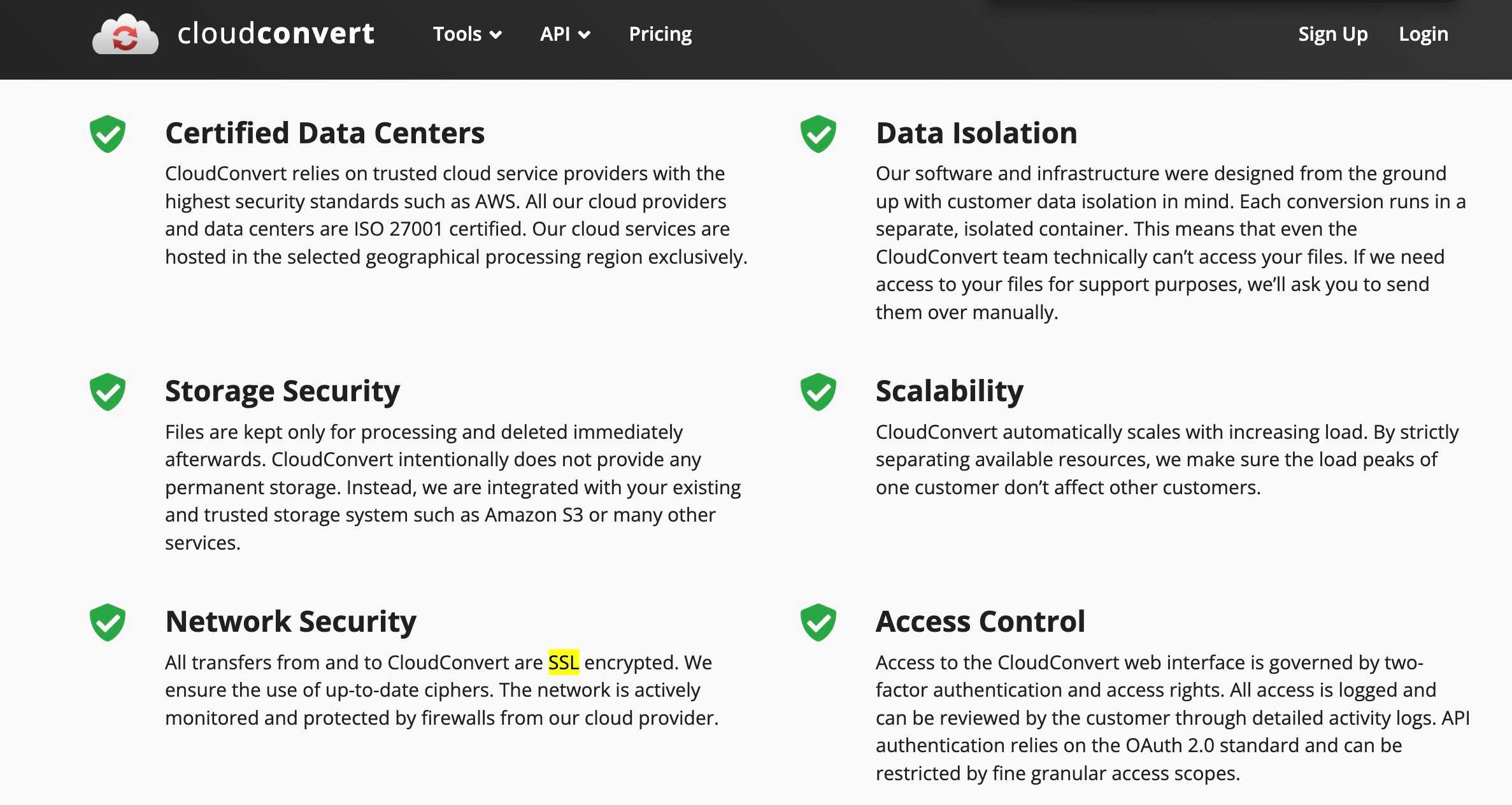
Encryption in transit is the baseline. If a tool doesn't use encrypted transport, that's an immediate red flag. CloudConvert says transfers are encrypted with SSL/TLS.
This matters because uploads are when your file is most exposed. Without TLS, anyone on the network path can see or alter it. Even with TLS, you still need to think about what happens after upload—this is the first checkpoint, not the final verdict.
"All transfers from and to CloudConvert are SSL encrypted."
Source: CloudConvert Security & Compliance
Risk Point 2: Temporary Storage and Deletion Window
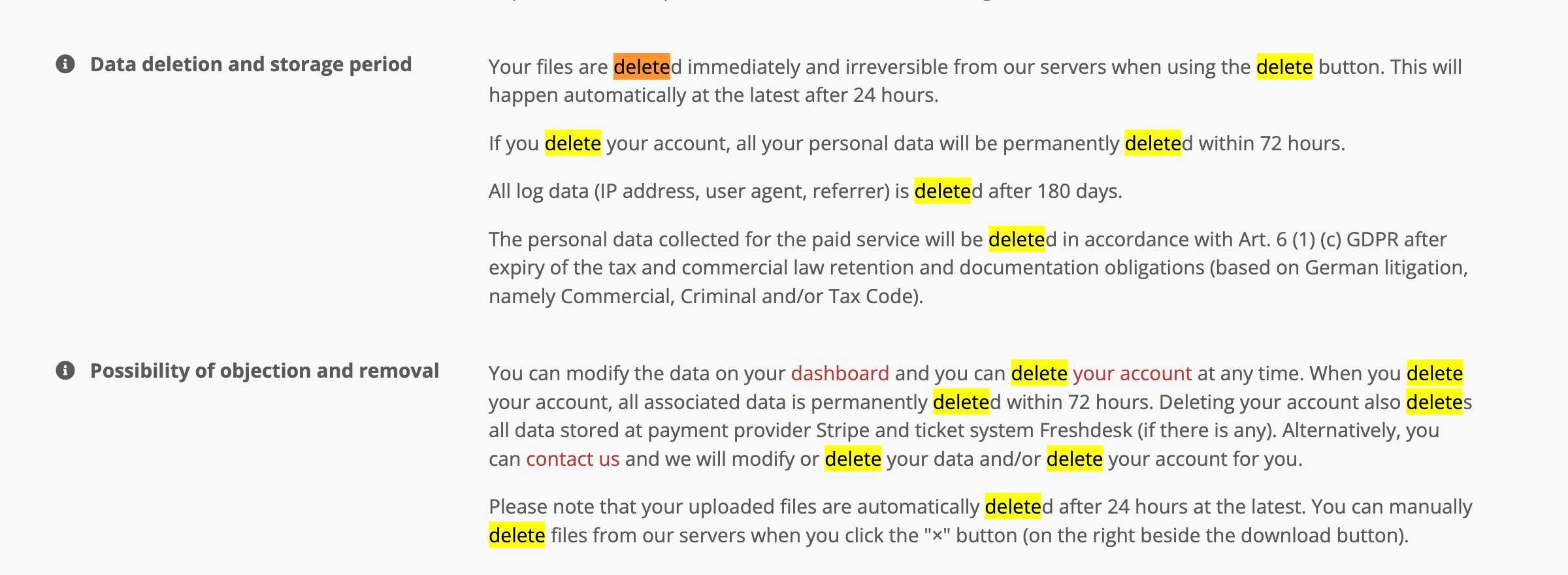
The biggest exposure window is how long your file exists on a server. A "delete immediately" promise is stronger than "we keep files for convenience." CloudConvert explains a deletion policy and a maximum retention window.
A shorter window generally lowers risk, but you should also look for details about whether you can trigger deletion yourself. If the tool offers a delete button, test it. If it does not, you are fully trusting the automated retention schedule.
"Your files are deleted immediately and irreversible from our servers when using the delete button. This will happen automatically at the latest after 24 hours."
Source: CloudConvert Privacy Policy
Risk Point 3: Processing Environment and Isolation
Even if files are short-lived, it matters whether jobs run in isolated environments or shared infrastructure. CloudConvert says each conversion runs in its own isolated container.
Isolation reduces the chance that another user's job can access your data. It also limits the blast radius if a conversion engine has a bug. When a provider describes isolation clearly, it's a strong signal they've thought about multi-tenant risks.
"Each conversion runs in a separate, isolated container."
Source: CloudConvert Security & Compliance

Risk Point 4: Content Access and Data Mining
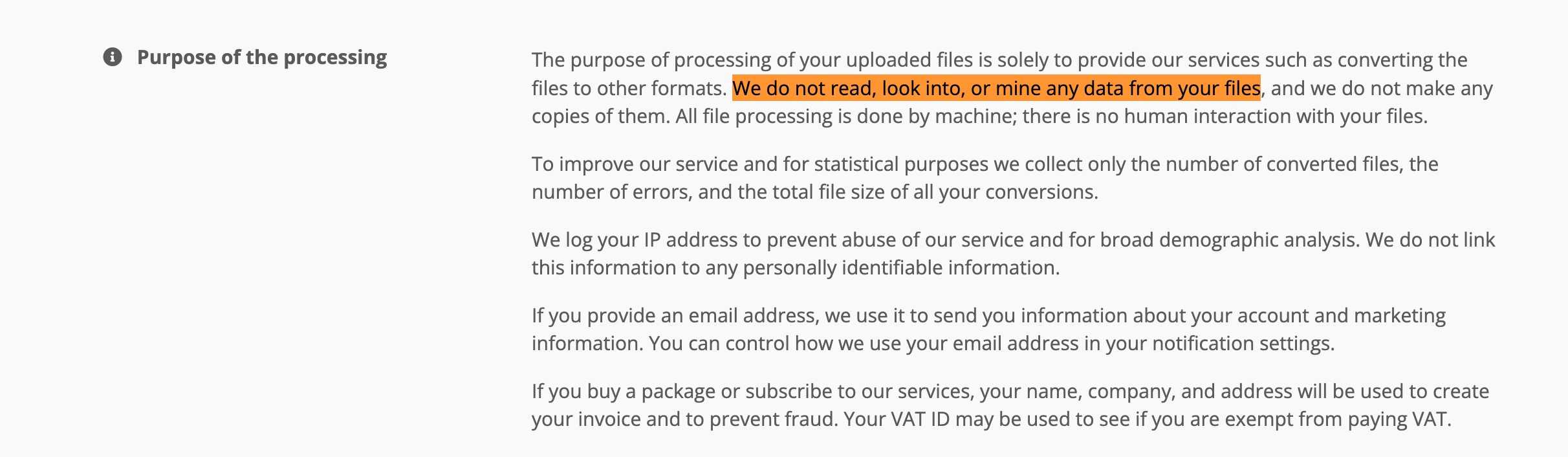
A privacy-friendly tool should say plainly that it doesn't inspect or mine file contents. CloudConvert makes a direct statement about how uploaded files are handled.
This matters even more if the provider offers AI features, search, or analytics. Those can be useful, but you should know whether they require reading file contents. Clear language in the policy helps you decide when the convenience is worth the trade-off.
"We do not read, look into, or mine any data from your files, and we do not make any copies of them."
Source: CloudConvert Privacy Policy
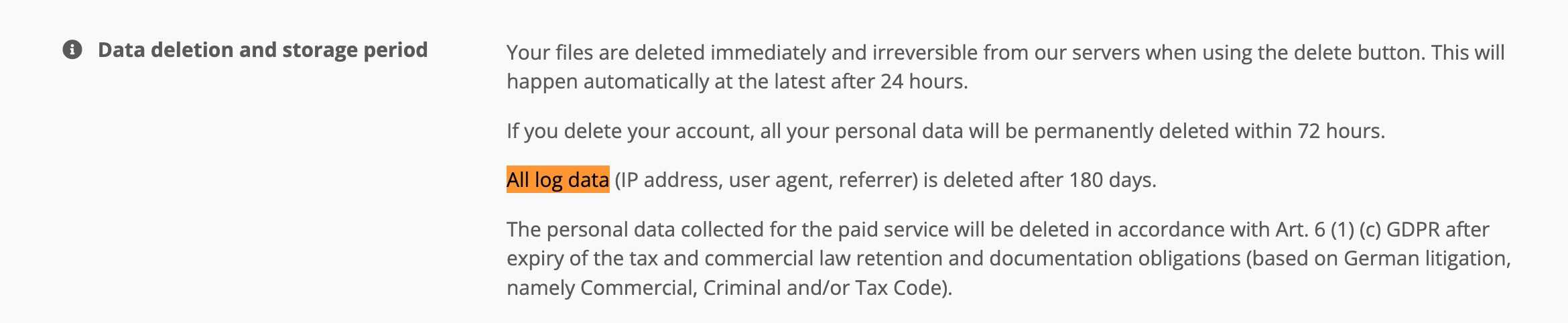
Risk Point 5: Logs and Metadata Retention
Even if files are deleted, operational logs can retain metadata for months. CloudConvert states a log retention period.
Log data often includes IP address, user agent, and referrer. This metadata doesn't reveal the file itself, but it can still link your activity to a specific conversion session. If your use case is sensitive, shorter log retention is better.
"All log data (IP address, user agent, referrer) is deleted after 180 days."
Source: CloudConvert Privacy Policy
Risk Point 6: Policy Commitments vs. Your Use Case
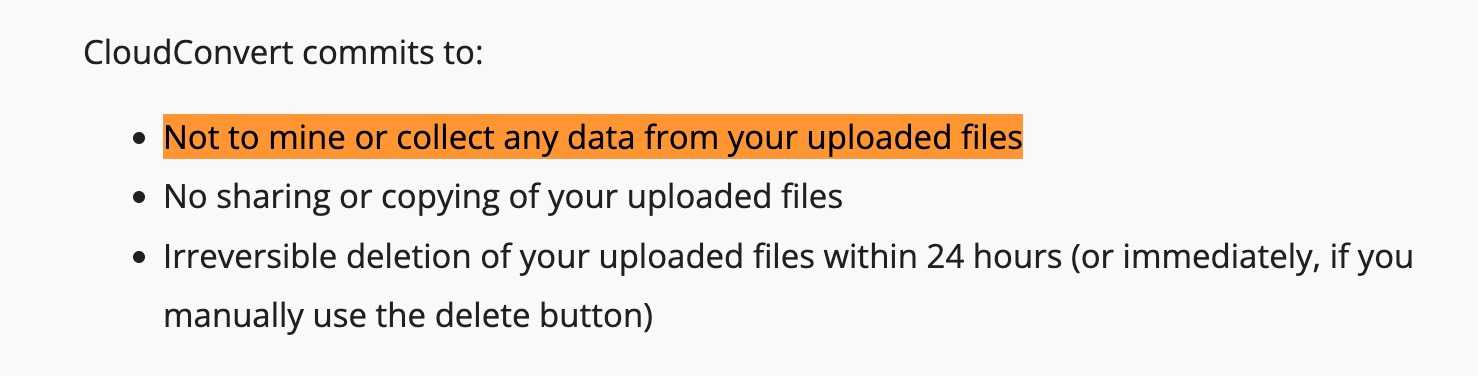
Policy commitments are useful, but they don't remove all risk. A good practice is to cross-check public commitments against your file's sensitivity. CloudConvert's GDPR page summarizes its commitments about data handling.
The key idea is context. A policy can be strong and still not be enough for certain files. If you're handling contracts, medical records, or confidential client assets, assume a higher bar and consider alternatives that keep files entirely local.
"Not to mine or collect any data from your uploaded files."
Source: CloudConvert GDPR Post
Quick Self-Check Before Uploading Any File
The fastest way to reduce exposure is to minimize what you upload. Think of this as a pre-flight checklist. If you do just two or three of these items, you will usually lower the risk more than switching tools.
- Remove sensitive fields (names, IDs, signatures).
- Crop or mask confidential sections.
- Strip metadata when possible.
- Split documents into smaller parts.
- Lower resolution when you only need a preview.
- Avoid uploading high-risk files (contracts, IDs, financials).
For example, a single-page PDF containing a contract is far more sensitive than an image you already posted publicly. If the only reason you are converting that PDF is to generate a quick preview, consider exporting a low-resolution image first. If you need to convert a spreadsheet for sharing, remove columns that include personal data before uploading. Small choices like these have a large impact.
A Simple Risk Score You Can Use
If you want a quick mental model, score each tool on a 0 to 2 scale for each risk point: 0 means unclear or risky, 1 means acceptable, 2 means strong and explicit. Add the six scores for a total out of 12. A tool scoring 10 or above is likely safe for low-risk files. A tool scoring below 8 should be treated with caution, especially if the file is sensitive.
This is not a scientific measure. It is a practical shortcut to help you compare tools quickly and consistently. The goal is not to get a perfect number, but to avoid blind trust.
What This Means for Everyday Image Work
Most people use online converters for simple tasks: resizing a photo, converting a file format, or compressing images for faster sharing. These use cases are low risk when the files do not contain private information. That is why a clear security page and a transparent privacy policy are still important: they help you evaluate whether the tool is appropriate for routine work.
But there is a separate class of files that should always trigger a pause. Anything involving legal terms, financial data, personal IDs, or confidential client assets deserves a more cautious workflow. In those cases, even short retention windows and strong policies do not eliminate the risk, because the file still leaves your device.
How to Apply the Same Checklist to Any Tool
The six risk points above are not unique to CloudConvert. They are a general framework you can apply to any online tool. When you evaluate a new service, scan for statements about transport encryption, deletion timing, isolation, content access, log retention, and public commitments. If one of these is missing, you should treat it as an unknown risk, not a neutral detail.
Also pay attention to what a service does not say. If there is no mention of file retention, assume files could be kept longer than you expect. If there is no mention of isolation, assume conversions run on shared infrastructure. When a policy is vague, that vagueness is the risk.
Common Scenarios and Safer Choices
Scenario 1: You are converting a personal photo for social media. This is low risk. A reputable online tool with clear policies is usually fine, and the convenience is worth it.
Scenario 2: You are converting a resume, cover letter, or portfolio for a job application. This is medium risk because it includes personal identifiers. Consider removing your home address or phone number if it is not required. If possible, prefer a local tool.
Scenario 3: You are converting contracts, invoices, or financial documents. This is high risk. It is safer to use a local converter or a desktop tool where the file never leaves your device. If you must use an online tool, redact sensitive fields first.
Scenario 4: You are converting images for client work before release. Even if the files are not sensitive, the content might be confidential. Local processing is a simple way to avoid accidental exposure.
FAQ: Quick Answers
Does HTTPS mean the tool is safe? It means your upload is encrypted in transit, but it says nothing about storage, access, or retention. You still need to check the other points.
Is a 24-hour deletion policy good enough? For low-risk files, it is usually acceptable. For sensitive files, the safest approach is to avoid uploads entirely.
What if the tool has no privacy policy? Treat that as a significant risk. Lack of transparency is itself a warning sign.
Are browser-based tools always safer? For privacy, yes, because your files stay on your device. But you should still trust the code and avoid unsafe browser extensions.
Conclusion: Pick the Safer Path for the File
For everyday, low-risk images, online tools can be convenient—especially when they publish clear security and privacy policies. But when you're unsure about sensitivity, the safest path is to avoid uploads altogether. Browser-based tools that process locally help reduce exposure because your files never leave your device.
If you want local, in-browser processing for images, try our low quality image tool. It runs entirely in your browser, works on desktop and mobile, and keeps your files on your device.
Ready to Compress Your Images?
Try our free online image compression tool. All processing happens in your browser - fast, private, and easy to use.
Related Articles
How to Remove Image Background Without Uploading to a Server
Remove image background for free — your photo stays on your own device, nothing gets uploaded. No signup, no watermark, unlimited.
HEIC Format Complete Guide: Why iPhone Uses HEIC and Should You Convert to JPEG?
Deep dive into HEIC format: technical advantages, why Apple chose it, HEIC vs JPEG comparison, compatibility issues, and when to convert.