
How to Remove Image Background Without Uploading to a Server
Remove image background for free — your photo stays on your own device, nothing gets uploaded. No signup, no watermark, unlimited.
Most background removal tools work the same way: you upload your image to their server, their AI processes it, and the result gets sent back. That means your image — whether it's a confidential product photo, a personal portrait, or a document scan — travels through someone else's infrastructure. For many use cases, that's an unacceptable risk.
This guide explains exactly what happens when you use server-side tools, which tools process images without uploading, and how to remove image background without uploading your file to any server.
What “Uploading to a Server” Actually Means
When a background removal tool requires a server upload, here's the data flow:
- Your image is transmitted from your device to their servers
- The image is stored temporarily (sometimes permanently) on their infrastructure
- Their AI model processes it
- The result is sent back to your browser
- The original file may remain on their servers for days, or indefinitely
Most tools mention this in their privacy policy, but not in the UI. You find out only if you read the fine print.
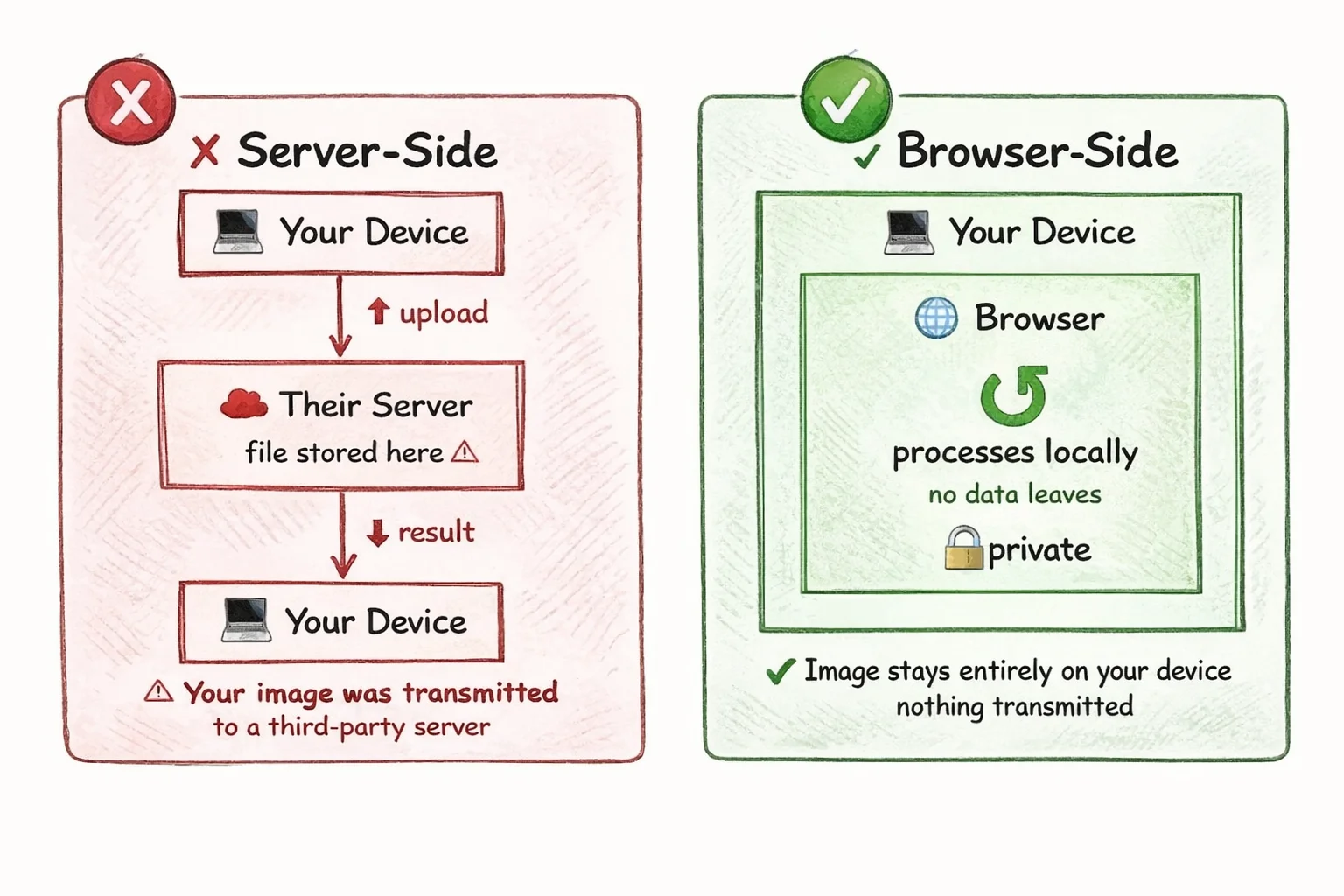
Server-side vs. browser-side processing: the difference is where your image goes
Who Should Care About This
This matters more than most people realize. Common scenarios where removing image background without uploading is the right call:
- Product photography for unreleased items: Uploading photos of an unannounced product to a third-party server is a real IP risk.
- ID photos and personal documents: Passport photos, ID cards, and similar images contain sensitive personal data you wouldn't want stored on an unknown server.
- Client work under NDA: Designers and photographers working on confidential projects often can't legally use server-side tools without client approval.
- Medical or legal images: Any image tied to identifiable personal information falls under privacy regulations (GDPR, HIPAA) that server uploads may violate.
- Corporate internal photos: Office interiors, employee headshots, and facility photos often carry internal confidentiality expectations.
Which Tools Remove Image Background by Uploading to a Server?
| Tool | Processes on Server? | Storage Policy |
|---|---|---|
| remove.bg | Yes | Stores images up to 24 hours |
| PhotoRoom | Yes | Stored on their servers |
| Canva | Yes | Stored in your Canva account |
| Adobe Express | Yes | Stored in Creative Cloud |
| lowqualityimage.org | No — runs in browser | Not uploaded for processing |
Storage policies are based on each tool's publicly stated privacy policy as of 2026. Always verify directly with the provider for the most current terms.
How Our Tool Removes Image Background Without Uploading
When you use our Remove Background tool, the processing model loads into your browser once (cached after the first use, so subsequent images are faster). From that point, everything runs locally — your image is never uploaded or sent to any server for processing.
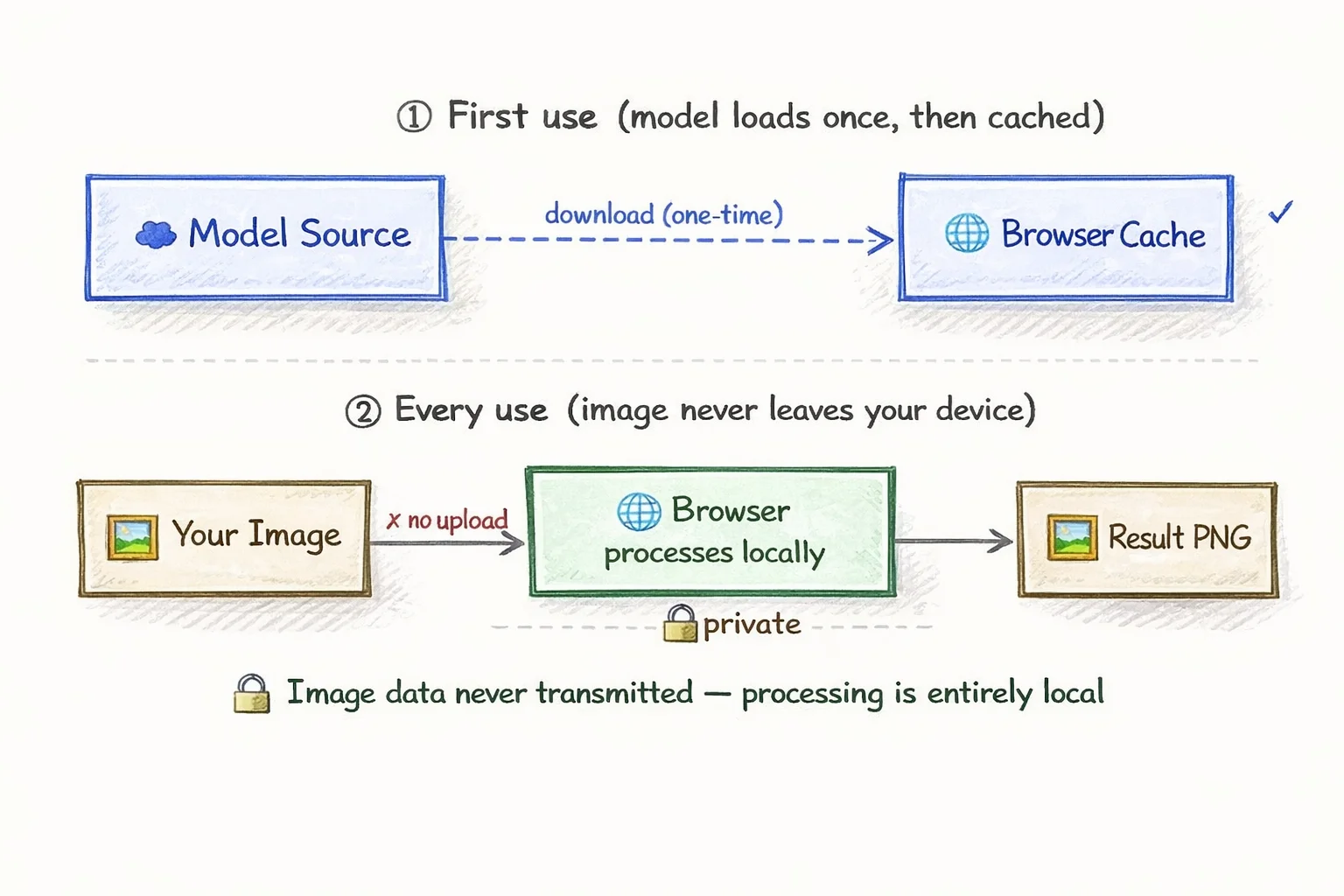
The model comes to your image — your image never goes to the model's server
How to Remove an Image Background Without Uploading
- Open the Remove Background tool in your browser (desktop or mobile)
- Drop your image onto the upload area, or tap to select it from your device
- Wait a few seconds while it processes locally in your browser
- Download the result as a transparent PNG — the file is generated in your browser and saved directly to your device
No account. No sign-up. Your image is never uploaded to any server for processing.
The One Trade-Off
Browser-side processing is slower than server-side on very large files, because your device's CPU does the work instead of a cloud GPU. For most images under 10MB, the difference is a second or two. For large RAW files or very high-resolution photos, server-side tools will be faster — if you're comfortable with the upload.
For sensitive images, that trade-off is straightforward: a few extra seconds of processing time is a reasonable cost for keeping your file private.
Frequently Asked Questions
Can I remove image background without uploading to a server?
Yes. The processing model runs entirely inside your browser. Your image is never uploaded or sent to any server for processing.
Why is the first image slower to process?
The first time you use the tool, the processing model needs to download to your browser. This is a one-time step — the model is cached after that, so subsequent images process much faster without any additional download.
What image formats are supported?
You can upload JPG, PNG, and WebP. The output is always a transparent PNG, since PNG is the only widely supported format that preserves transparency.
Is there a file size limit?
The tool accepts files up to 100MB. In practice, most images process without issue. Very large files may take longer since your device's CPU handles the work locally.
Can I remove image background on my phone?
Yes. The tool works in any modern mobile browser on iPhone or Android — no app installation required.
Does remove image background work on complex photos?
It handles most common cases well: people, products, animals, and objects against varied backgrounds. Results are best when the subject has clear contrast against the background. Very busy scenes or transparent subjects (glass, water) are harder for any tool to handle cleanly.
Remove Image Background — Without Uploading to Any Server
If your image is sensitive — unreleased products, personal documents, confidential client work — use a tool that doesn't require uploading it to a server. Try our browser-based background remover. Your image is never uploaded to any server for processing — everything runs locally in your browser.
Ready to Compress Your Images?
Try our free online image compression tool. All processing happens in your browser - fast, private, and easy to use.
Related Articles
How to Resize a PNG Online Without Losing Transparency
Resize a PNG online in three steps. Change exact pixel dimensions, keep the aspect ratio and transparent background, then download for free.
How to Make a Circular Profile Picture for Any Social Platform
Make a circular profile picture for Instagram, Discord, TikTok, YouTube, and more. Crop safely and download a transparent PNG for free.
Make an Instagram 3×3 Grid From One Photo (Without the Order Coming Out Backward)
Split one photo into a 3×3 Instagram grid the right way: prep the aspect ratio, use live grid lines, and post in reverse order so the mosaic does not scramble.