
How to Rotate an Image 90° or 180° Online (Free & Fast)
Fix sideways or upside-down photos in seconds. Rotate any JPG, PNG, or WebP image 90° or 180° directly in your browser for free with no server upload.
When you take a photo on your phone or scan a document, it often ends up sideways or upside down on your computer.
You don't need Photoshop or an app to fix it. You can rotate any JPG, PNG, or WebP photo 90° or 180° directly in your browser.
Key Takeaways
- No upload: Processing happens in your browser, so your files stay on your device.
- 3 fixed angles: Pick
90° Left,90° Right, or180°to preview the change instantly. - Transparent PNGs: Transparent backgrounds stay intact, and dimensions adjust automatically for 90° turns.
- Permanent fix: Rewrites the actual image pixels so it never turns sideways again on other sites.
How to Rotate an Image in 3 Steps
- Upload your image: Drag and drop your JPG, PNG, or WebP file into the Rotate Image tool, or click to choose a file from your device.
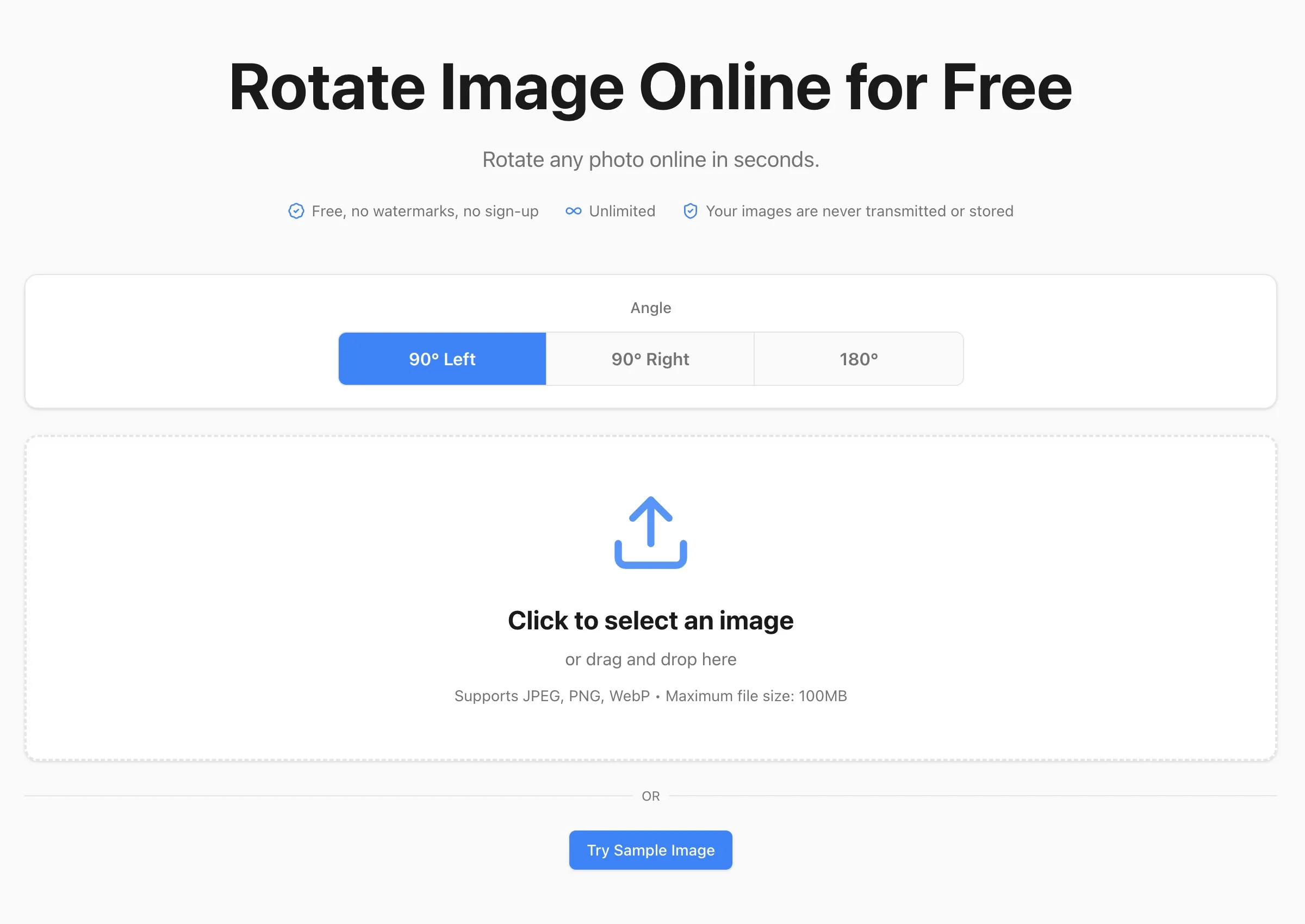
- Pick an angle: Click
90° Left,90° Right, or180°. The preview updates right away without an "Apply" button.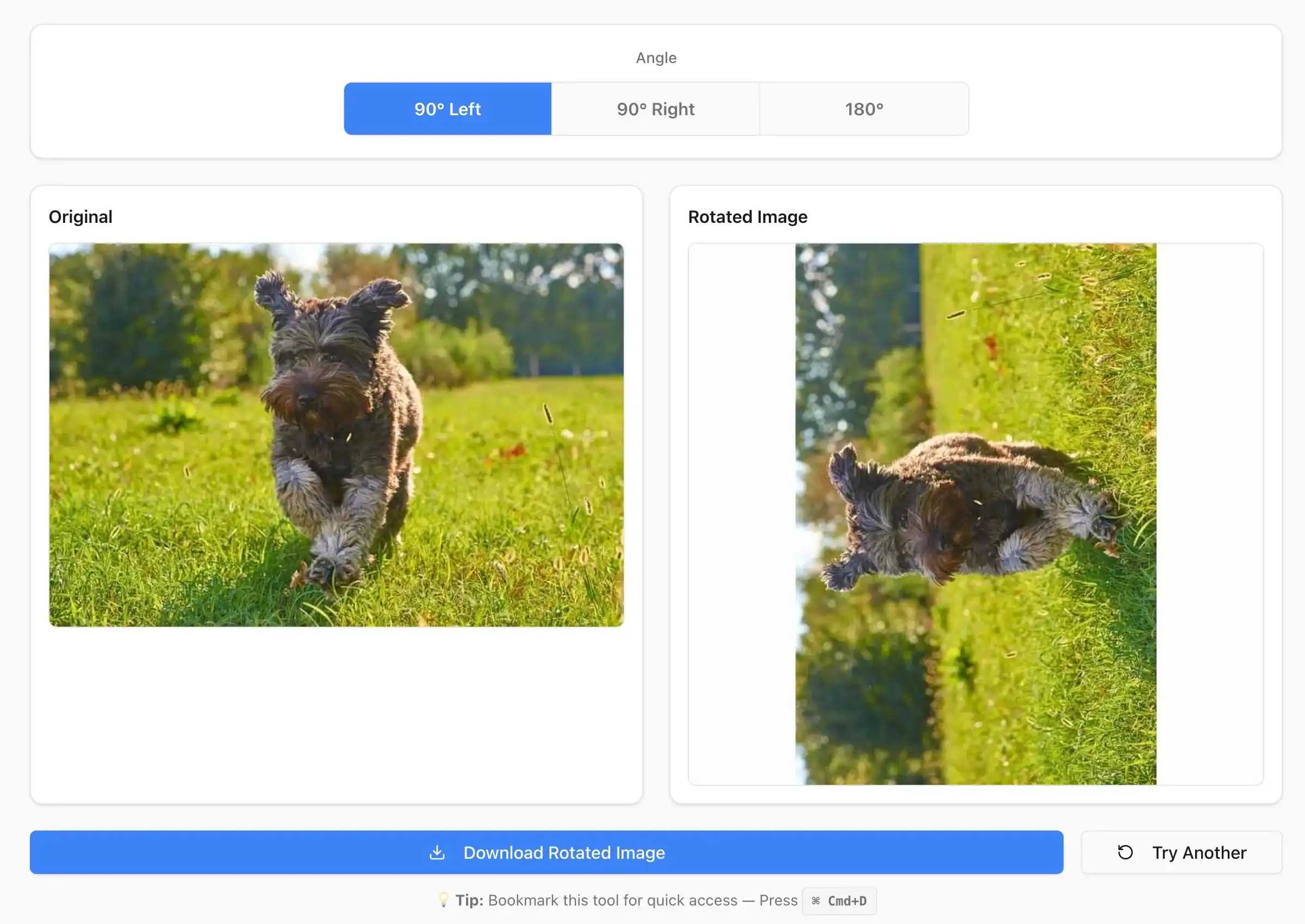
- Download the result: Check the side-by-side preview and click Download Rotated Image.
Why Photos End Up Sideways
When you turn your phone to take a picture, the phone doesn't actually rearrange the pixels. Instead, it saves the photo in a default position and attaches a small tag (EXIF orientation metadata) that tells your gallery which way is up.
When you upload that photo to a website, an email attachment, or a form, the platform often strips out the EXIF tag to save bandwidth. Without that tag, the image falls back to its raw orientation—usually sideways.
This tool rotates the actual pixel grid on a canvas. Once saved, the image stays upright everywhere, whether the viewer supports EXIF tags or not.
Rotate vs. Flip
Rotate
Turns the image around a circle (90° or 180°). Text and objects stay readable in their normal order.
Flip
Creates a mirror reflection. Left and right swap places, so text reads backward.
If you need a mirror effect instead, use the Flip Image tool.
FAQ
Does rotating reduce image quality?
No. The tool keeps the original resolution. A 90° turn swaps width and height, while a 180° turn keeps the exact same dimensions.
Can I rotate photos on my phone?
Yes. It works directly in Safari, Chrome, or any mobile browser without installing an app.
Are my files uploaded to your server?
No. Everything runs locally in your browser. Your photos never leave your device.
Rotate Your Image Online
Need to rotate an image 90 or 180 degrees? Head over to the Rotate Image tool, choose your angle, and download the upright photo.
Ready to Compress Your Images?
Try our free online image compression tool. All processing happens in your browser - fast, private, and easy to use.
Related Articles
How to Resize a PNG Online Without Losing Transparency
Resize a PNG online in three steps. Change exact pixel dimensions, keep the aspect ratio and transparent background, then download for free.
How to Make a Circular Profile Picture for Any Social Platform
Make a circular profile picture for Instagram, Discord, TikTok, YouTube, and more. Crop safely and download a transparent PNG for free.
Make an Instagram 3×3 Grid From One Photo (Without the Order Coming Out Backward)
Split one photo into a 3×3 Instagram grid the right way: prep the aspect ratio, use live grid lines, and post in reverse order so the mosaic does not scramble.