
Image Color Picker
Use our image color picker to pick a color from any photo and copy the code.
Click to choose an image
Use a JPG, PNG, or WebP file.
Key Features of Our Image Color Picker
Live Color Preview
Move your mouse over the image and see the color change in real time. Pick the color only when it looks right.

Copy Ready-to-Use Codes
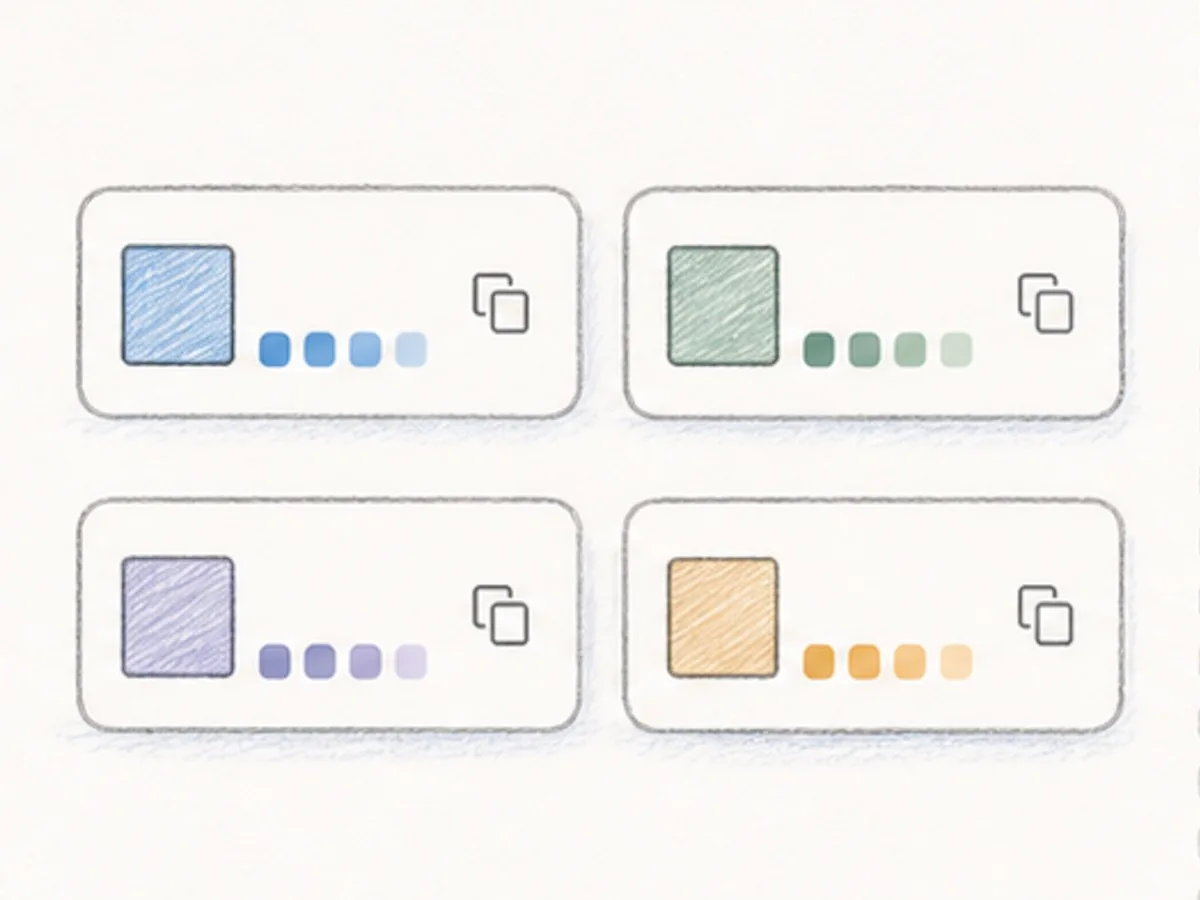
Get the color in HEX, RGB, HSL, and HSV. Copy the code you need and use it in CSS, design tools, or color notes.
Private Local Processing
Your image is not uploaded to a server. The image color picker runs in your browser, so your photo stays on your device.

Works With Common Image Files
Use JPG, PNG, or WebP images. You can pick colors from photos, screenshots, logos, product images, and UI mockups.

Try Before You Upload
Use the sample image to test the image color picker first. You can see how it works without choosing your own file.

What Is Our Image Color Picker?

Our image color picker is a tool that reads color from a photo. You add an image, move over it to preview colors, and click a spot to get the color code for that pixel. It helps when you want to match a logo, copy a color from a screenshot, or find a shade from a product photo. The image color picker gives you the code in common formats, so you can use the color in CSS, design apps, slides, or notes.
Use the image color picker for website colors, brand checks, social posts, product photos, mood boards, and quick color notes.
The image color picker lets you preview a color, click a pixel, and copy HEX, RGB, HSL, or HSV code.
How to Use the Image Color Picker
Use the image color picker to pick a color from an image in three simple steps. No account or setup needed.
Drop a JPG, PNG, or WebP file into the tool. You can also click the box and choose a file.
Move over the image to preview colors. Click the spot you want, and the tool shows the color code right away.
Copy HEX, RGB, HSL, or HSV code. Move again if you want to check a nearby pixel.
Why Use Our Image Color Picker?
The image color picker preview follows your mouse, so you can check nearby shades before you pick one.
Copy HEX, RGB, HSL, or HSV code and paste it into CSS, design tools, slides, or notes.
The image color picker runs in your browser. Your image is not uploaded to a server.
Use the sample image to test the tool first. Then choose your own image when you are ready.
Image Color Picker FAQ
Common questions about picking colors from images
How do I pick a color from an image?
Can I get a HEX code from a photo?
Does this image color picker show RGB too?
Can I preview a color before I click?
Are my images uploaded to a server?
What image formats can I use?
Is the image color picker free to use?
Why do designers use an image color picker?
Will the color code match the image?
Ready to Pick a Color?
Use the image color picker to click a pixel and copy the color code