
Merge Images Online
Combine photos into one — side by side or stacked.
Click to select images
or drag and drop here — pick two or more
Supports JPG, PNG, WebP
Key Features of Our Merge Images Tool
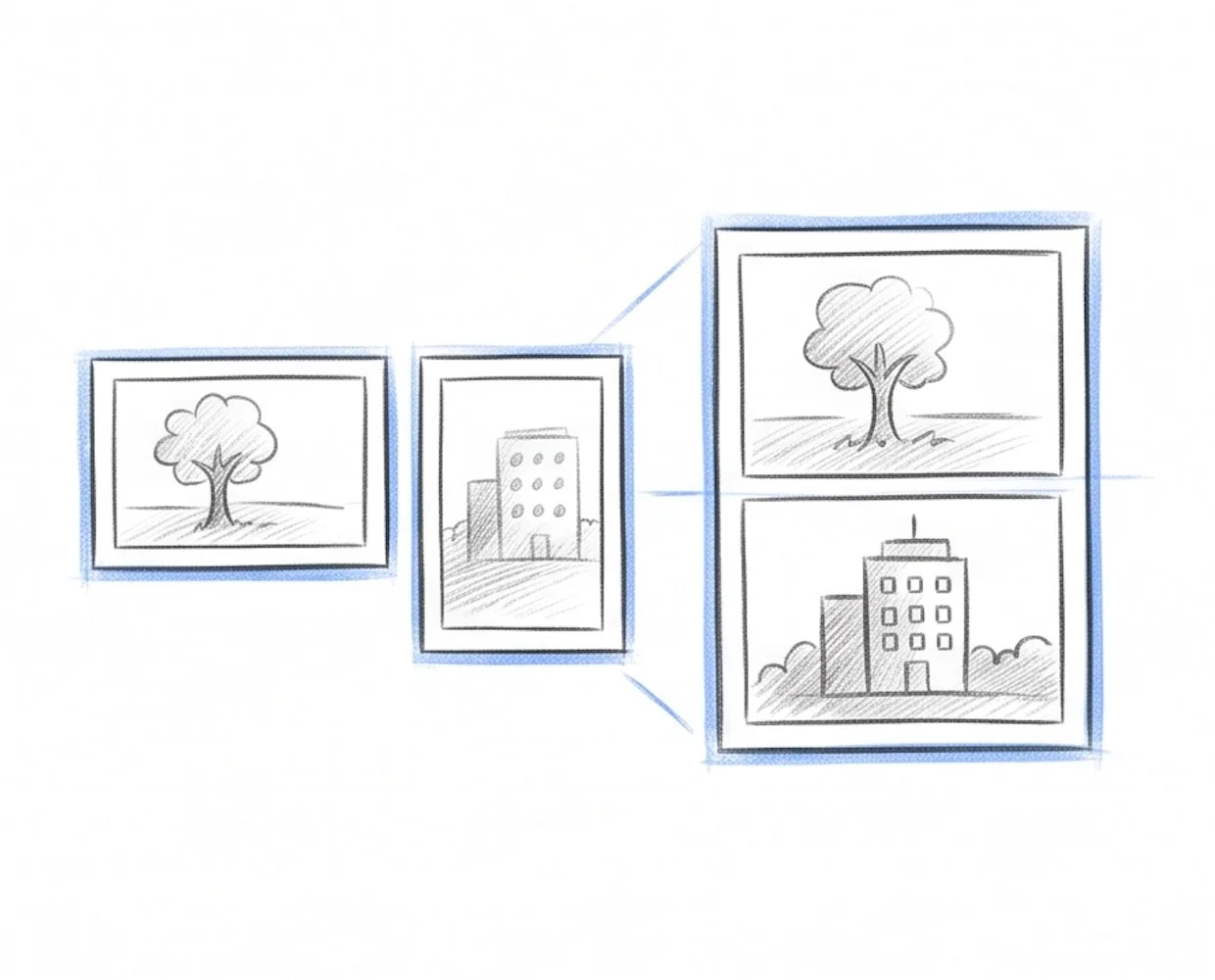
Horizontal & Vertical Merge
Put your photos side by side, or stack them top to bottom. Merge Images lets you choose which way to combine them.
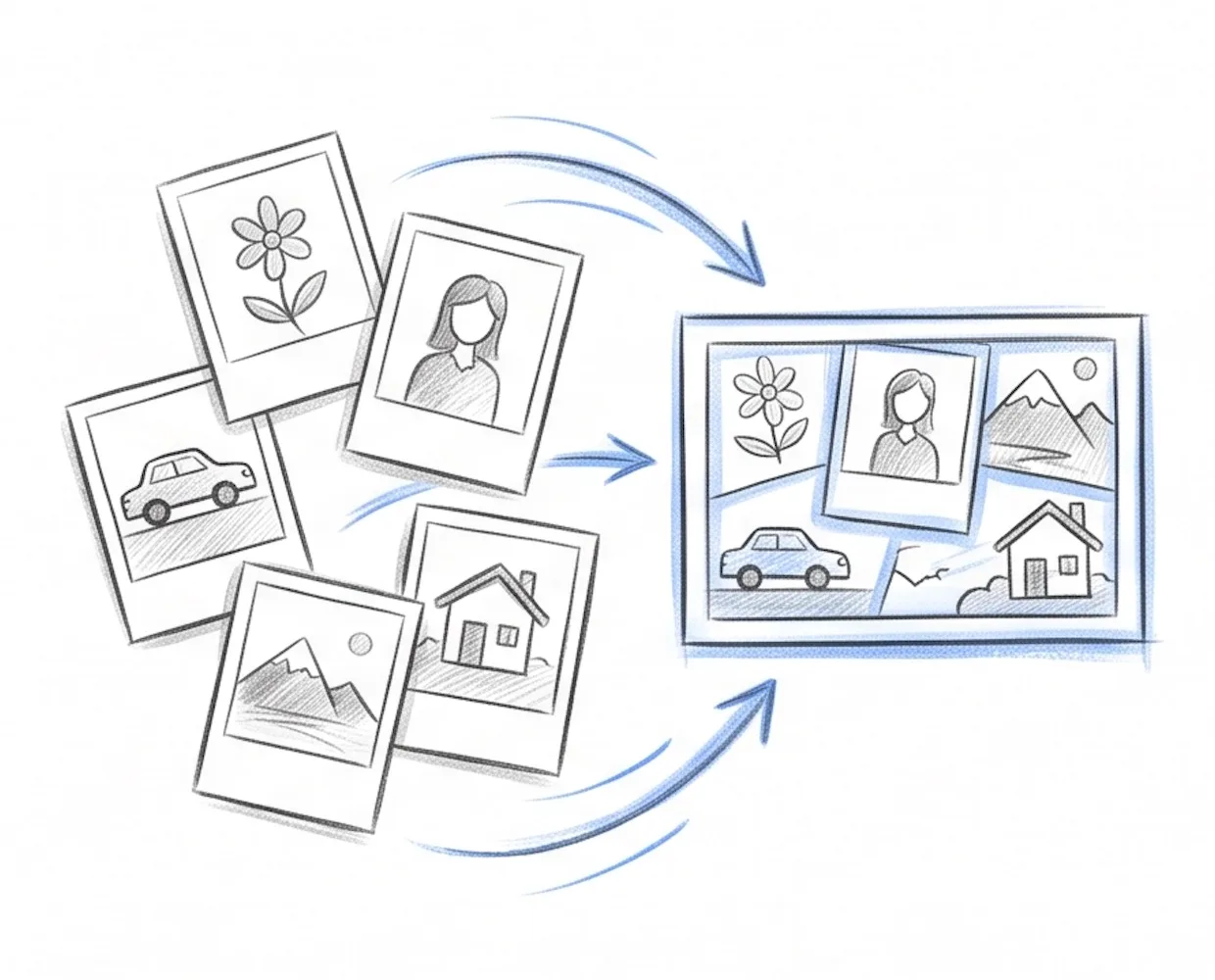
Multiple Images at Once
Add two photos or a dozen. Merge Images joins them all into one image.
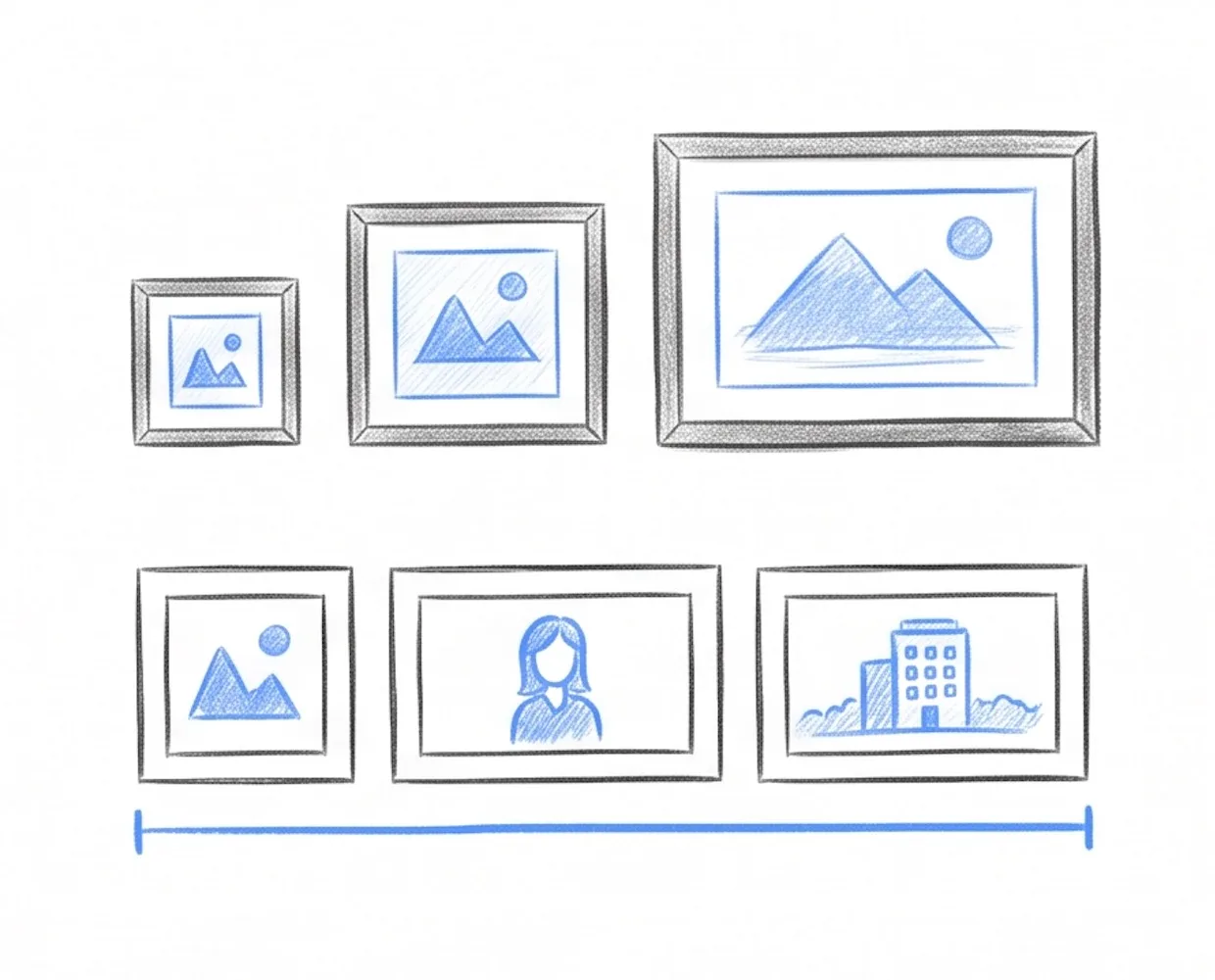
Automatic Size Matching
Your photos can be different sizes. Merge Images resizes them to fit together, so nothing gets cut off.
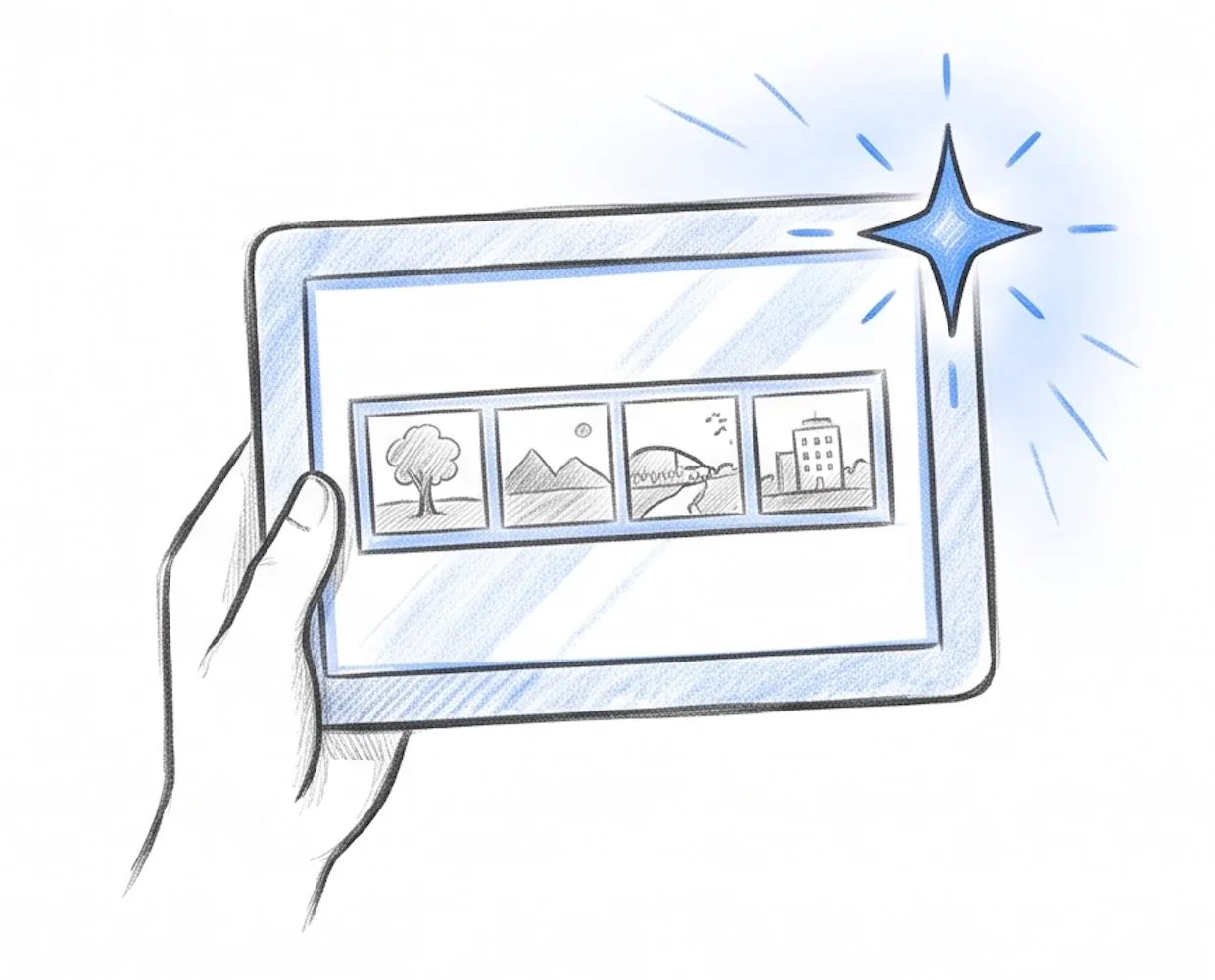
Instant Preview
See the merged image the moment you add your photos. Merge Images updates the preview as you change the layout.
Full Privacy
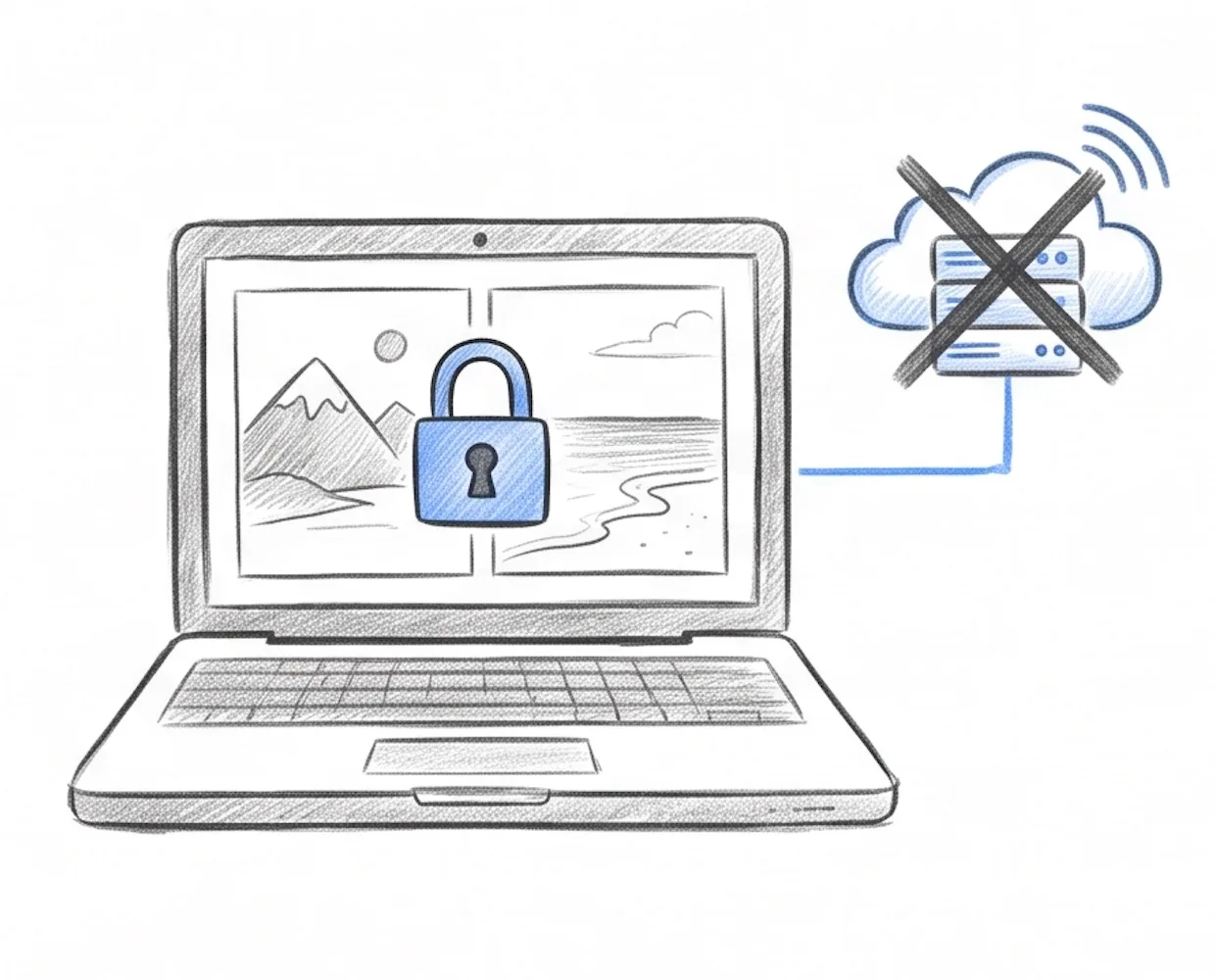
Merge Images never sends your photos to a server. They stay on your device.
What Is Our Merge Images Tool?
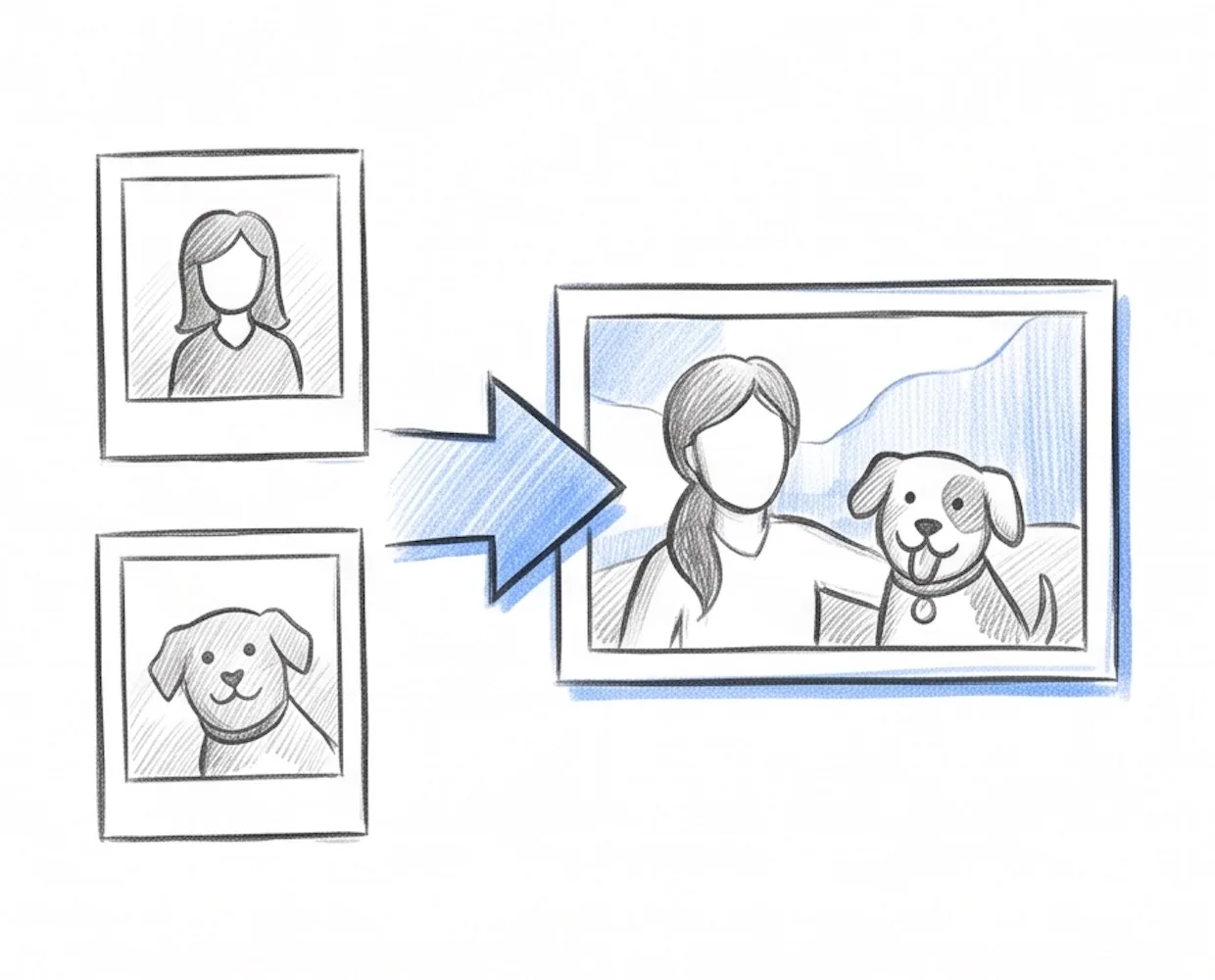
Our Merge Images tool is a free online tool that lets you merge images into one file. With Merge Images you pick how the photos line up. Horizontal puts them side by side into one wide image. Vertical stacks them top to bottom into one tall image. The original photos are not changed — Merge Images places them together and resizes them so the edges match. People merge images to compare two photos side by side, to turn a set of screenshots into one long image, or to combine several photos into one file that is easier to share.
Before-and-after comparisons, long screenshots, step-by-step guides, product shots in a row, and any time two or more photos need to become one file.
Horizontal joins your photos left to right into one wide image. It is the usual pick for a side-by-side comparison. Vertical stacks them top to bottom into one tall image. It is the usual pick for long screenshots or a set of steps.
How to Merge Images into One
Merge photos into one image with an instant preview. It takes under a minute, with nothing to install.
Drag and drop your JPG, PNG, or WebP photos into the Merge Images tool. Or click to choose them from your device. They join in the order you add them.
Pick Horizontal to place the photos side by side. Pick Vertical to stack them top to bottom. The preview shows the result right away.
Check the combined image in the preview. Then click Download. The merged photo saves to your device as one file.
Why Choose Our Merge Images Tool
Add photos, pick side by side or stacked, and download. There are no spacing, border, or background settings to deal with. That is the whole tool.
Photos of different sizes fit together on their own. You do not have to resize anything first. Nothing is cropped or stretched, and there are no gaps.
The merged image previews the moment you add your photos. Switch between horizontal and vertical and it updates. You know exactly what you are getting before you download.
Your photos are combined right on your device. They are never sent to a server. The merged image stays with you.
Merge Images FAQ
Common questions about our online merge images tool
How do I merge images into one?
Can I merge more than two images?
What happens if my images are different sizes?
What is the difference between horizontal and vertical merge?
Are my images uploaded to a server?
Is Merge Images free, with no sign-up or watermark?
What image formats can I merge?
Will merging reduce image quality?
Ready to Merge Your Images?
Add your photos, pick side by side or stacked, and download the combined image