
How to Make a Circular Profile Picture for Any Social Platform
Make a circular profile picture for Instagram, Discord, TikTok, YouTube, and more. Crop safely and download a transparent PNG for free.
A profile photo can look perfectly centered in your camera roll and still lose half a logo, the top of your hair, or a line of text after you upload it. The problem is usually not the photo. It is the circular mask that social platforms place over a square source image.
The reliable fix is to prepare the crop before uploading: start with a square image, keep the important parts inside a circular safe zone, and export a transparent PNG when you need a genuinely round file. This guide shows how to make a circular profile picture that stays readable on Instagram, Discord, TikTok, YouTube, and other platforms.
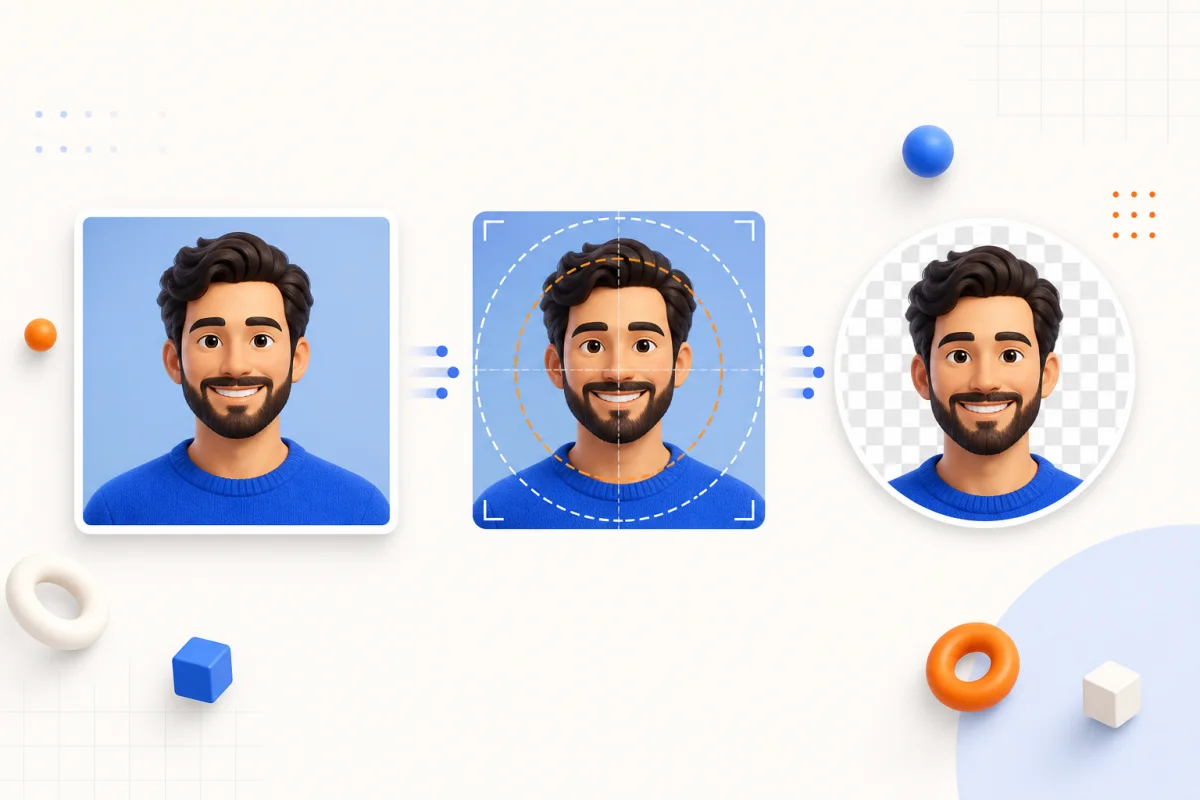
Square source, circular safe zone, finished transparent PNG.
The 30-second answer
Open the free Circle Crop tool, add your photo, select a platform preset, move the subject inside the circle, and download the result as a PNG. Processing stays in your browser, so the photo never needs to leave your device.
Make a Circular Profile PictureWhy a Square Image Becomes a Round Profile Picture
Most social platforms store a normal square image and display it through a circular mask. The file itself may still have four corners, but viewers only see the center circle. That is why a face or logo placed near an outside edge can disappear even though it was visible in the original preview.
A true circular profile picture is slightly different. It is normally a square PNG whose pixels outside the circle are transparent. This is useful for websites, email signatures, team pages, slides, and any design where you control the background. For social media, either a clean square image with a safe center or a transparent circular PNG can work; the important part is composing for the circular display.
Use a Square Source and Leave a Circular Safe Zone
Begin with the highest-quality square version of the image you have. If the source is a portrait or landscape rectangle, crop it to 1:1 first. A square source makes the final position predictable and keeps one platform from making a very different automatic crop than another.
Keep the face, logo, or main subject within roughly the center 75 to 80 percent of the frame. The remaining space is a safety margin. A headshot should include the full hairline and part of the shoulders. A logo should keep every letter and border away from the outer circle. If the image contains small text, assume it will become unreadable in comments and notifications and remove it when possible.
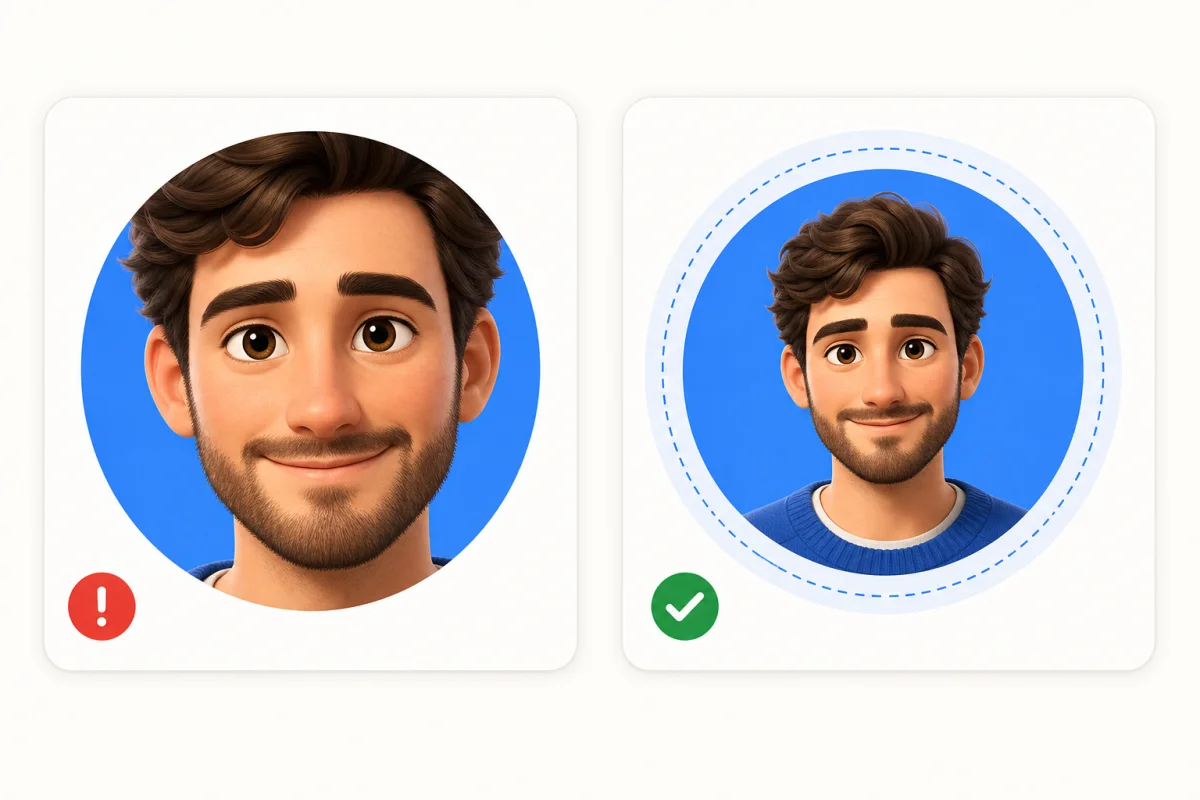
Too tight on the left; centered with breathing room on the right.
Circular Profile Picture Sizes: Choose an Export Preset
There is no universal upload size that every platform requires. Some services resize an image during upload, and the displayed avatar is often much smaller than the source file. The presets below are export sizes in our Circle Crop tool. They give you a practical square file for each destination without asking you to calculate dimensions.
| Preset | Export size | Framing advice |
|---|---|---|
| Discord | 128 × 128 px | Keep the subject simple enough to read at a tiny size. |
| 180 × 180 px | Keep borders and text away from the circular edge. | |
| 320 × 320 px | Use a sharp square source with the face centered. | |
| TikTok / X | 400 × 400 px | Leave extra space for platform overlays and small previews. |
| YouTube | 800 × 800 px | Check that the image still reads clearly in comments. |
These are convenient export presets, not a claim that every platform requires that exact upload size. YouTube, for example, says a channel picture renders at 98 × 98 px and recommends a square or round source; a larger upload still gives the service room to create its own display versions. See the current YouTube profile picture guidelines.
How to Make a Circular Profile Picture Online
Step 1: Add Your Photo
Open the Circle Crop tool and choose a JPG, PNG, or WebP image. A clear headshot, centered logo, or square illustration gives you the most room to work. Files are read locally in the browser rather than uploaded for processing.
Step 2: Choose a Platform Preset
Select Discord, Facebook, Instagram, TikTok/X, or YouTube. The preset controls the downloaded pixel dimensions; it does not lock your crop. You can still move the photo and resize the circle until the framing looks right.
Step 3: Position the Circular Crop
Drag the circular area over the subject and resize it as needed. Keep the eyes near the horizontal center, include the complete hairline, and leave a little room below the chin. For a logo, check every edge of the circle and make sure no letter or symbol crosses the boundary.
Step 4: Download the Transparent PNG
Select Download Circular Image. The result is a PNG with transparent corners, ready for a profile, website, presentation, or team directory. Keep the original photo as well so you can make a different crop later without enlarging an already-small export.
Check the Profile Picture at More Than One Display Size
A circular profile picture that looks excellent at 800 pixels can fail when it shrinks to a 32-pixel comment avatar. Fine lettering, thin logo lines, and background detail disappear first. Before you upload, zoom the result down until it is about the size of a browser tab icon. If the subject is no longer recognizable, simplify the crop or move closer to the face or logo.
Do not solve this by cropping all the way to the subject's edge. The better fix is a simpler background, stronger contrast, and a little safe padding. That combination stays legible across desktop profiles, mobile feeds, comments, and notification cards.
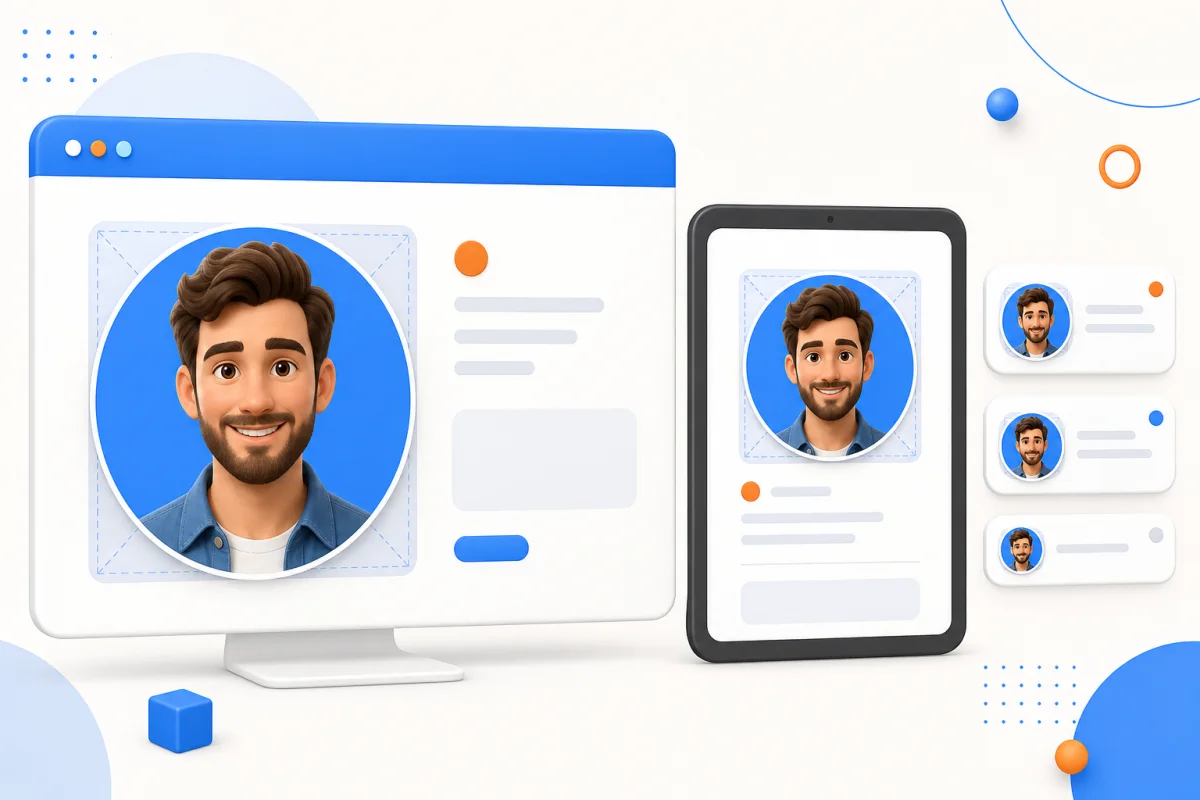
Test the same crop large and small; the subject should survive both.
PNG or JPG: Which Format Should You Use?
Use PNG when you need genuinely transparent corners. PNG is the safest choice for a round team photo on a colored website, a slide deck, or a design that may move between light and dark backgrounds. The circle remains clean because there is no white square behind it.
JPG does not support transparency. It can still be a good source file for a social platform that applies its own circular mask, especially when the image is a photograph and the background already fills the whole square. If you need to remove the background around a person or object before cropping, use the browser-based background remover first and then bring the PNG into Circle Crop.
Crop It Yourself or Let the Platform Crop It?
Letting the platform crop is fine for a casual selfie with plenty of space around the face. It is fast, and most apps give you a simple preview before saving. The downside is inconsistency: each app can use a slightly different zoom or center point.
Preparing one circular profile picture yourself is better for a brand logo, professional headshot, gaming avatar, or any identity you want to keep consistent across platforms. You decide the crop once, inspect the safe zone, and reuse the same visual everywhere. If the original needs a different square composition first, the regular image crop tool gives you more control before the final circle.
How to Make a Circular Profile Picture on iPhone or Android
- Open the Circle Crop tool in Safari, Chrome, or another browser.
- Choose a photo from your phone's photo library.
- Select the destination preset.
- Use your finger to move and resize the circular crop.
- Download the transparent PNG back to your device.
There is no app to install and no account to create. If the finished avatar is too large for an upload form, run a copy through the image compressor rather than repeatedly saving over your only original. For a wider mobile editing workflow, see our guide to compressing and preparing images on your phone.
Common Questions About Circular Profile Pictures
How do I make a circular profile picture without Photoshop?
Open the free Circle Crop tool, add a JPG, PNG, or WebP image, position the circle around your subject, choose an export preset, and download the result as a transparent PNG. The whole process runs in your browser.
Can a JPG have a transparent circular background?
No. JPG does not support transparency, so its four corners need a solid color. Use PNG when you want the area outside the circle to stay transparent.
Why does my profile picture get cut off after uploading?
Most platforms display a square source image through a circular mask. Anything near the four corners or outer edge can disappear. Keep the face, logo, and text inside a centered safe zone with room around them.
What size should a circular profile picture be?
There is no single size for every platform. Start with a sharp square image and use the preset for your destination. A larger clean source is safer than enlarging a small image later.
Can I make a circular profile picture on my phone?
Yes. The Circle Crop tool works in modern iPhone and Android browsers. Choose a photo from your library, move the crop with your finger, select a preset, and save the PNG to your device.
Is my profile photo uploaded to a server?
No. The Circle Crop tool reads and processes the image locally in your browser. Your original photo is not sent to our server or stored by us.
Make One Crop That Works Everywhere
A reliable circular profile picture starts with a square source, a centered subject, and enough space around the circle to survive small displays. Use a platform preset for convenient export dimensions, preview the result at thumbnail size, and choose PNG whenever you need transparent corners.
Ready to make yours? Open the free Circle Crop tool, add your photo, and download a finished avatar in a couple of minutes. Nothing is uploaded, and the export has no watermark.
Ready to Compress Your Images?
Try our free online image compression tool. All processing happens in your browser - fast, private, and easy to use.
Related Articles
How to Rotate an Image 90° or 180° Online (Free & Fast)
Fix sideways or upside-down photos in seconds. Rotate any JPG, PNG, or WebP image 90° or 180° directly in your browser for free with no server upload.
How to Resize a PNG Online Without Losing Transparency
Resize a PNG online in three steps. Change exact pixel dimensions, keep the aspect ratio and transparent background, then download for free.
Make an Instagram 3×3 Grid From One Photo (Without the Order Coming Out Backward)
Split one photo into a 3×3 Instagram grid the right way: prep the aspect ratio, use live grid lines, and post in reverse order so the mosaic does not scramble.