
How to Resize a PNG Online Without Losing Transparency
Resize a PNG online in three steps. Change exact pixel dimensions, keep the aspect ratio and transparent background, then download for free.
Need a logo, screenshot, or transparent graphic to fit exact dimensions? You can resize a PNG online in a minute without installing an editor. Set the new width or height, keep the aspect ratio locked, and download a new PNG that keeps its transparent background.
This guide shows how to resize PNG files with precise pixel dimensions in your browser. It is useful when a website, form, app store, or social platform asks for a specific size—and when you want to avoid stretching a logo or adding a solid background behind it.
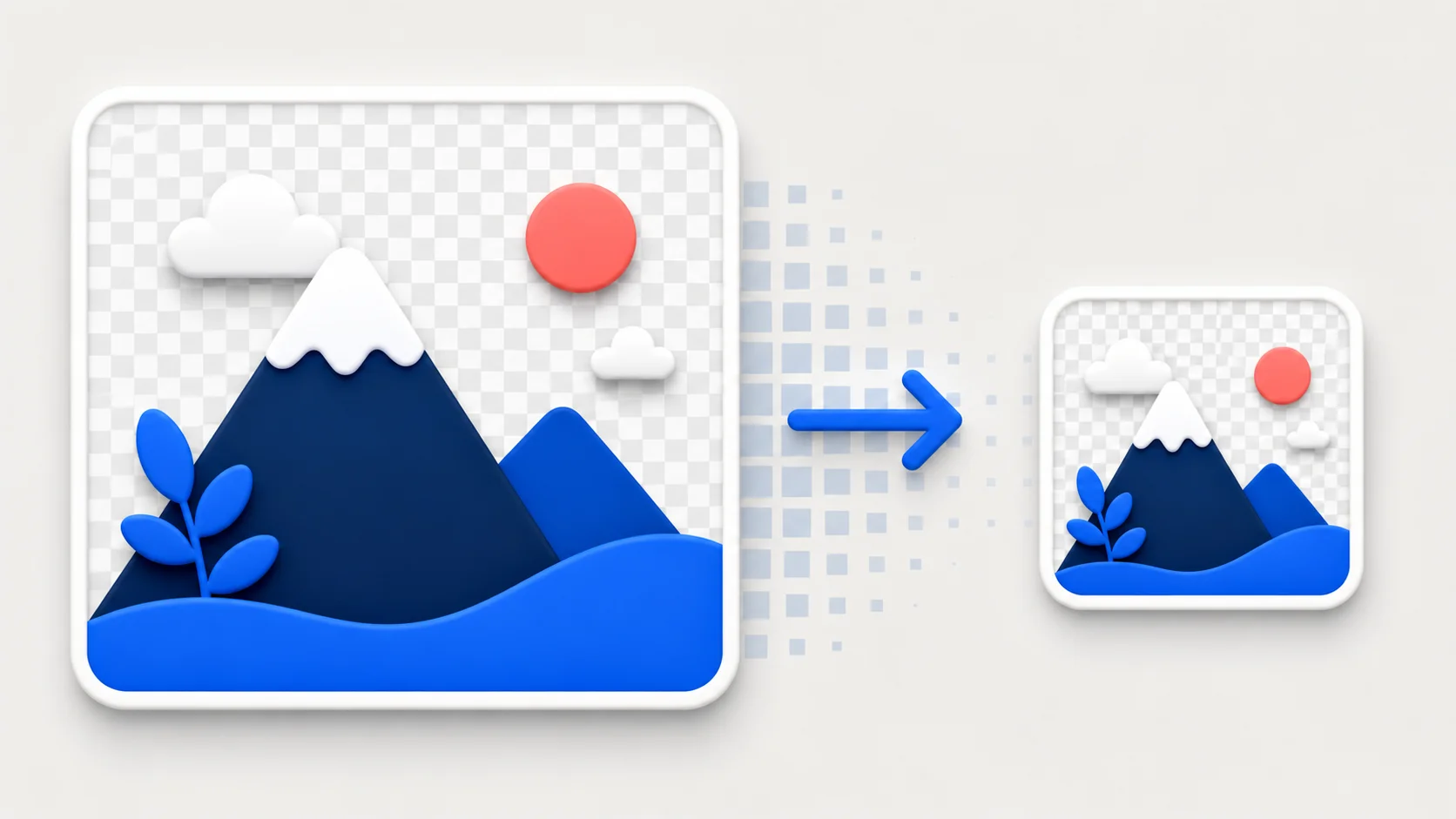
Resize the pixel dimensions while keeping the PNG format and transparent areas intact.
Key takeaways
- Resize changes an image's width and height in pixels.
- Keep the aspect ratio locked to avoid a stretched image.
- PNG transparency stays transparent in the resized download.
- Making an image smaller is safer than enlarging it beyond its original size.
How to Resize a PNG in 3 Steps
The quickest way to resize a PNG is with the free PNG resizer on Low Quality Image. It runs locally in your browser, so your PNG stays on your device rather than being sent to a server.
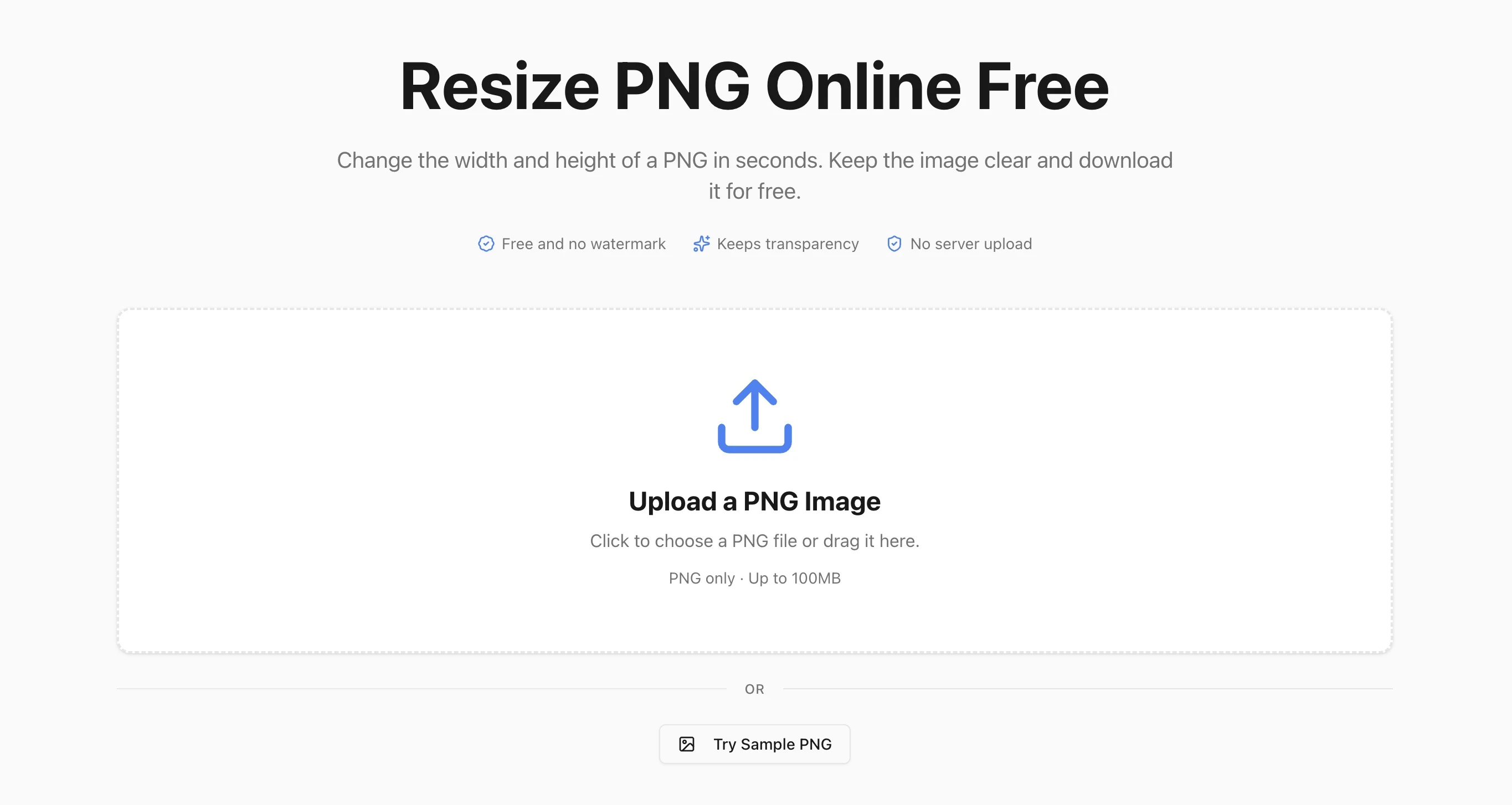
- Upload your PNG. Drag a PNG into the upload area or choose one from your device. Files up to 100 MB are supported.
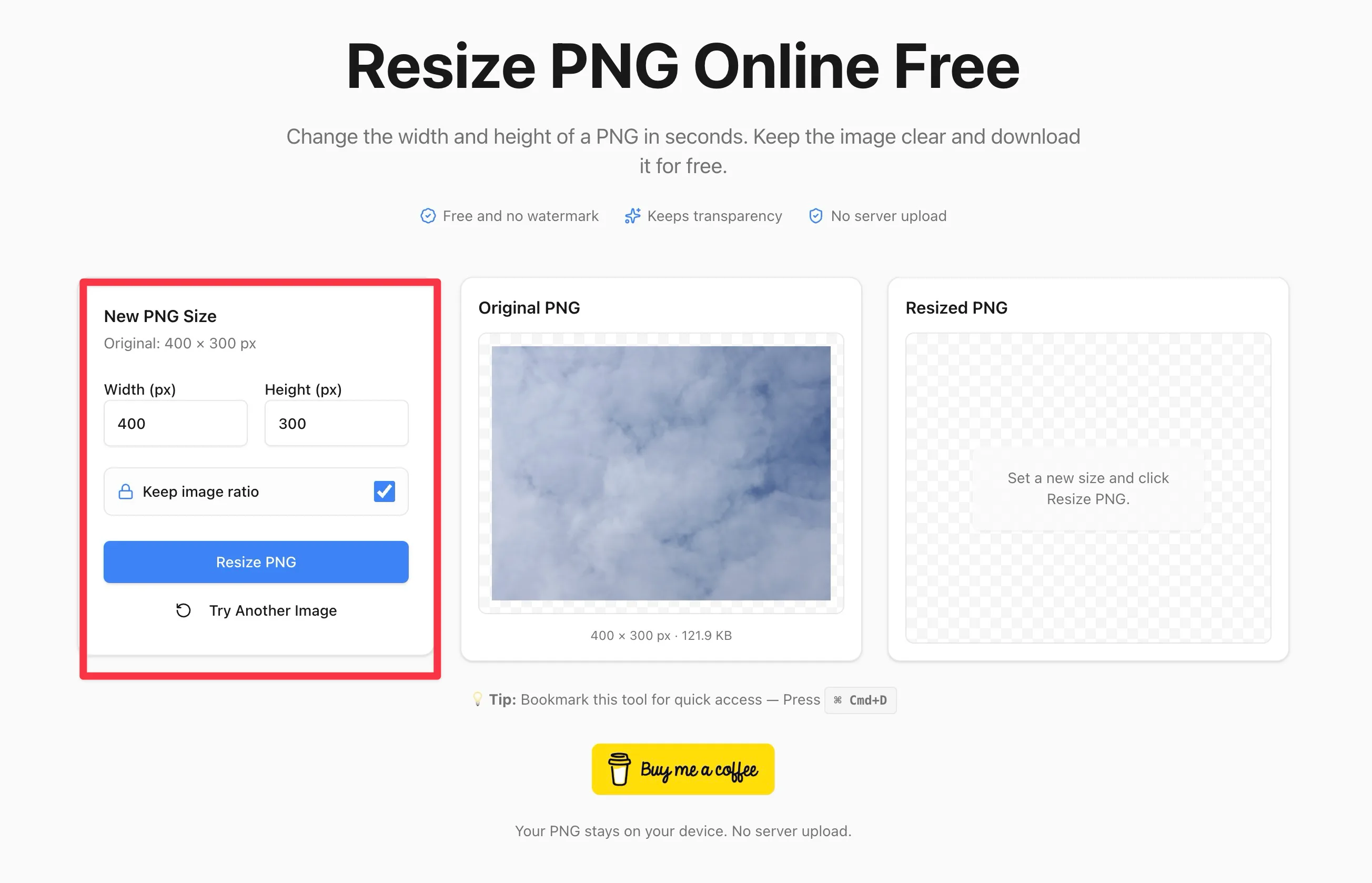
- Enter the new dimensions. Type the width or height you need in pixels. Leave the ratio lock on to calculate the other dimension automatically.
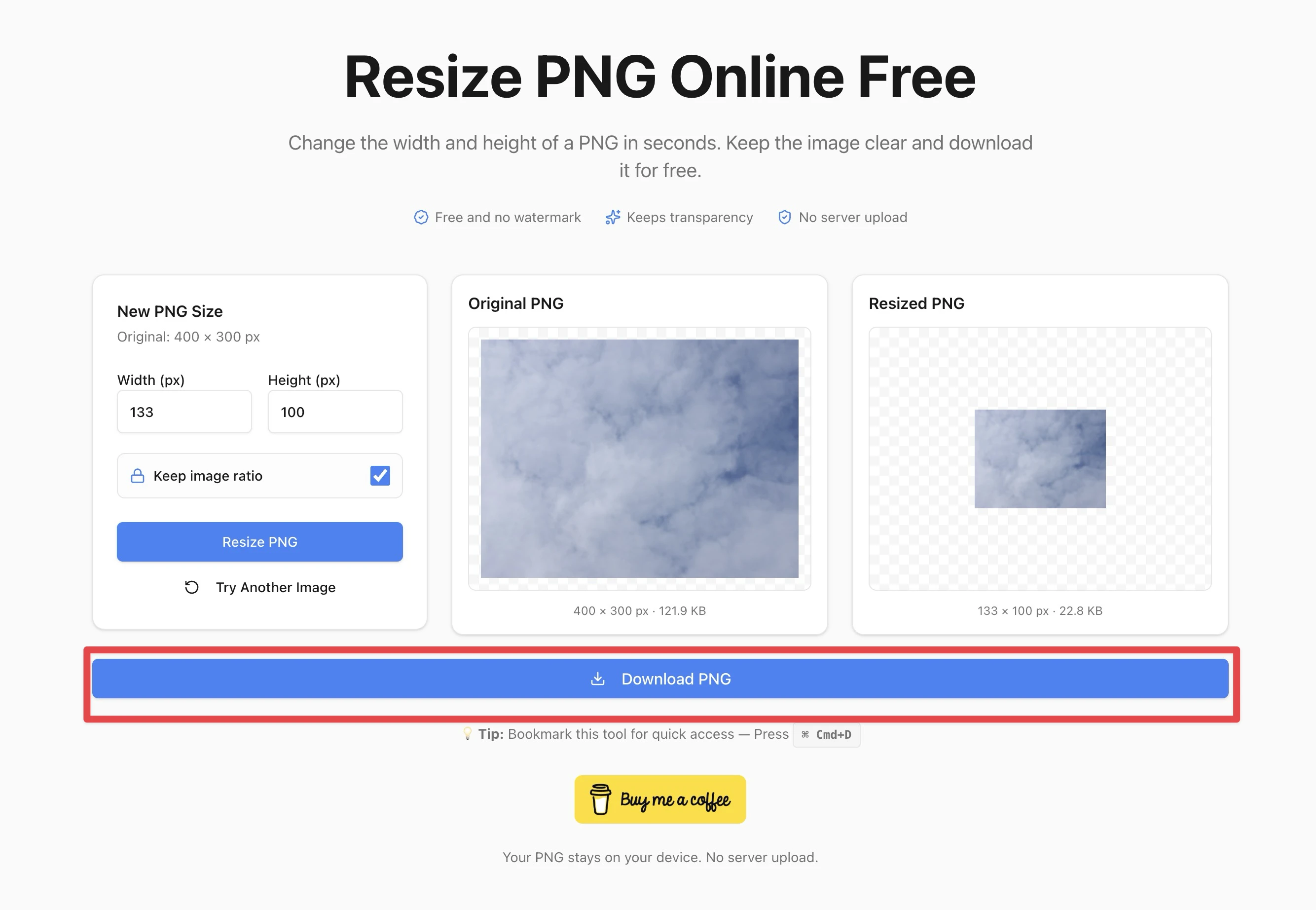
- Resize and download. Check the before-and-after preview, select Resize PNG, then download the new file.
What Does Resizing a PNG Change?
Resizing changes the size of the pixel grid. For example, changing a 2,000 × 1,000 PNG to 1,000 × 500 creates an image with fewer pixels while preserving the same wide shape. That is different from cropping, which removes part of the image, and from compression, which focuses on reducing the file's KB or MB size.
This distinction matters when a form says “maximum 500 × 500 pixels.” Use resize to meet that dimensional requirement. If the form instead says “under 1 MB,” resize may help, but an image compressor is the more direct tool for a file-size limit.
Keep the Aspect Ratio Locked to Avoid Stretching
Aspect ratio is the relationship between an image's width and height. A 1,200 × 600 banner has a 2:1 ratio; a 512 × 512 icon is square. When you change both numbers independently, the image can become too wide, too tall, or visibly distorted.
For most PNGs, enter just one dimension and keep the ratio lock on. If you change a 1,200 × 600 banner to 600 pixels wide, the matching height becomes 300 pixels. Turn the lock off only when a destination truly requires a different shape; in that case, crop first if you need to preserve the subject's proportions.
Will Resizing Keep a PNG's Transparent Background?
Yes. A PNG can store transparent pixels, which is why it is popular for logos, stickers, product cutouts, and interface icons. The PNG resizer redraws the image into a PNG output, so its transparent areas remain transparent instead of becoming a white or black rectangle.
Check the preview before downloading if the file has fine transparent edges, such as hair, a shadow, or a small logo. This is especially useful when the resized image will appear on both light and dark backgrounds.
Can You Resize a PNG Without Losing Quality?
You can preserve the PNG format and transparency, but no tool can add visual detail that was not present in the original. Downsizing usually looks clean because the image has fewer pixels to display. Upsizing a small PNG, however, can make edges soft or pixels more noticeable.
For the sharpest result, start with the largest original available and resize down to the final dimensions. If you need a larger logo, export a fresh PNG from the source vector file when possible instead of enlarging a tiny raster image.
Common PNG Sizes to Use
- Profile or app icon: 512 × 512 pixels
- Blog or social share image: 1,200 × 630 pixels
- Small thumbnail: 150 × 150 pixels
- Website logo: use the exact display width required by the layout
These are starting points, not universal rules. Always check the target platform's current size requirements before you resize an important asset.
Resize vs. Compress a PNG
Choose resize when you need a specific width and height. Choose compression when the image dimensions are already correct but the file is too large to upload or slows down a page. For a large screenshot, you may resize it first and then use the image compressor if you still need a smaller file.
FAQ
Can I resize a PNG online for free?
Yes. The PNG resizer is free to use, requires no account, and does not add a watermark to the downloaded file.
Can I resize a PNG on my phone?
Yes. Open the PNG resizer in a modern mobile browser, select the file, enter the dimensions, and download the result to your device.
Does resizing a PNG make the file size smaller?
Often, yes: a smaller image has fewer pixels to store. The exact change depends on the image content, transparency, and new dimensions. Resize is not a guaranteed way to hit a particular KB or MB target.
Resize Your PNG Now
To resize a PNG without installing software, open the online PNG resizer and enter the pixel dimensions you need. Keep the ratio lock on for a natural-looking result, check the preview, and download a PNG that keeps its transparency.
Ready to Compress Your Images?
Try our free online image compression tool. All processing happens in your browser - fast, private, and easy to use.
Related Articles
How to Rotate an Image 90° or 180° Online (Free & Fast)
Fix sideways or upside-down photos in seconds. Rotate any JPG, PNG, or WebP image 90° or 180° directly in your browser for free with no server upload.
How to Make a Circular Profile Picture for Any Social Platform
Make a circular profile picture for Instagram, Discord, TikTok, YouTube, and more. Crop safely and download a transparent PNG for free.
Make an Instagram 3×3 Grid From One Photo (Without the Order Coming Out Backward)
Split one photo into a 3×3 Instagram grid the right way: prep the aspect ratio, use live grid lines, and post in reverse order so the mosaic does not scramble.