
Image Upload Failed? 7 Common Causes and Quick Fixes (2026)
A practical troubleshooting guide for image upload errors: unsupported formats, file size limits, dimension mismatches, and browser issues.
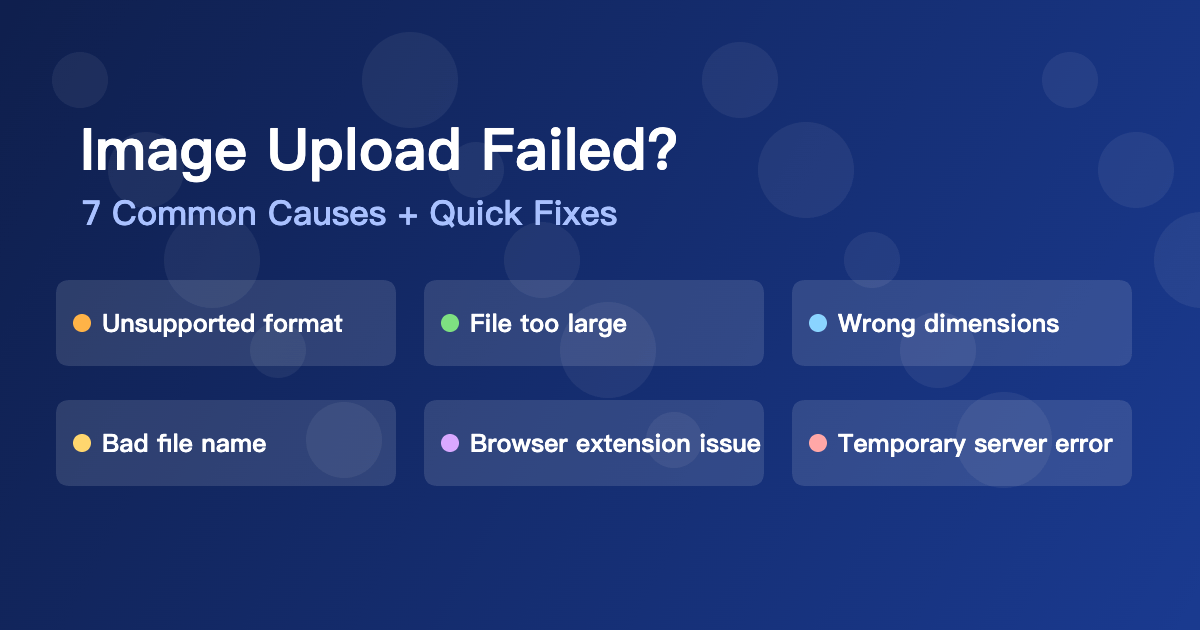
Fast fixes when an image upload fails
Image upload errors are one of the most common problems for resumes, marketplaces, blog CMS systems, and social apps. The good news is that most failures are caused by a few predictable issues. This guide gives you a quick diagnosis path and a fix for each case.
Quick 30-Second Triage
- Check file format first (JPG is the safest fallback).
- Check file size limit (compress if needed).
- Rename file using only English letters, numbers, and dashes.
- Try another browser or disable aggressive extensions.
1) Unsupported Format
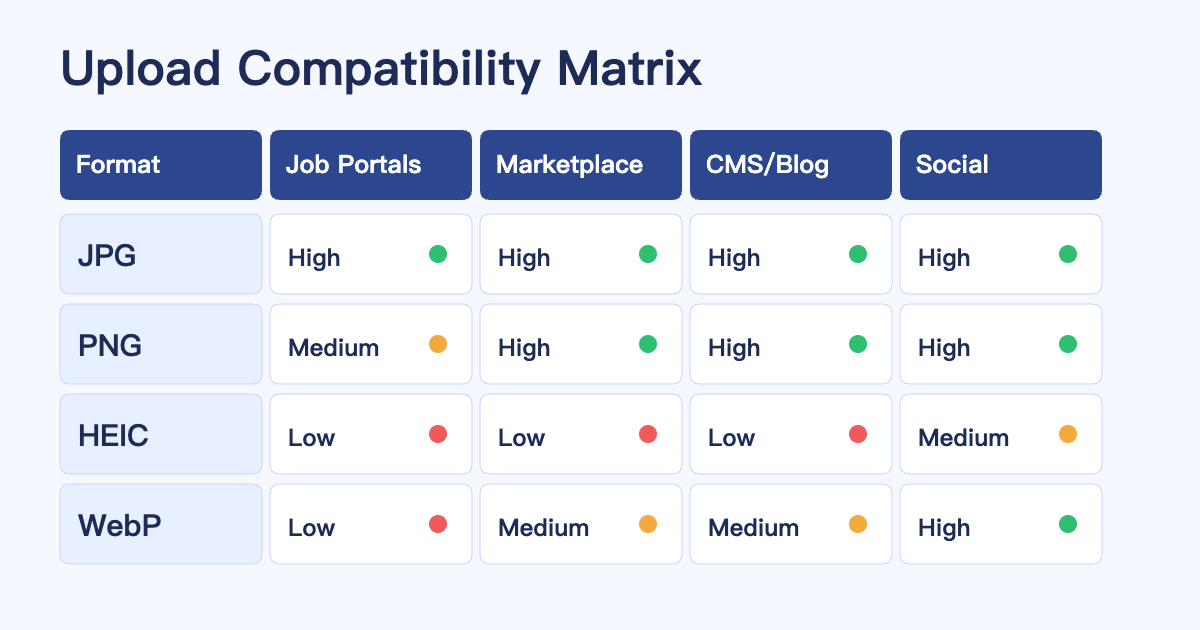
Many systems still reject HEIC or WebP even in 2026. If the uploader shows format errors, convert to JPG first.
Quick fix: use HEIC to JPG or WebP to JPG.
2) File Too Large
A lot of forms cap uploads at 2MB, 5MB, or 10MB. High-resolution photos from phones can easily exceed that.
Quick fix: run the file through Image Compressor, then re-upload.
3) Wrong Dimensions or Aspect Ratio
Some platforms require strict dimensions, such as 1080x1080, 1200x630, or profile-photo ratios.
Quick fix: crop first using Crop Image, then upload again.
4) Special Characters in File Name
Non-standard symbols, emojis, or long multilingual names can break older upload pipelines.
Quick fix: rename to something simple like profile-photo-2026.jpg.
5) Corrupted Export or Partial Download
A partially downloaded file may open locally but still fail validation on server-side upload.
Quick fix: re-export from the source app, or open and save as a new JPG before uploading.
6) Browser Extensions or Privacy Filters
Script blockers and privacy extensions can interrupt upload requests.
Quick fix: try incognito mode, disable extensions temporarily, and test again.
7) Platform-Side Temporary Error
Sometimes the issue is not your file. API gateways or storage buckets can fail temporarily.
Quick fix: wait 5-10 minutes and retry. If possible, test the same file in another account or device to confirm.
Platform-Specific Examples (What Usually Fails)
Different platforms fail for different reasons, even when they all show the same generic message like Upload failed. These examples can help you diagnose faster.
Job Portals and Application Systems
Many applicant tracking systems were built years ago and still expect older, predictable formats. HEIC photos from iPhone and very large PNG files often fail. In most cases, a standard JPG under 2MB works immediately.
- Common symptom: profile photo refuses to upload with no details
- Likely cause: unsupported HEIC or oversized file
- Fast fix: convert to JPG and compress below 2MB
Marketplace and E-commerce Listing Forms
Marketplace platforms typically accept multiple formats, but image pipelines can be strict on resolution ranges and background handling. Listings may reject images if the width is too small, too large, or if transparency causes preview problems.
- Common symptom: image uploads but listing preview is broken
- Likely cause: unusual dimensions or alpha-channel mismatch
- Fast fix: crop to a standard ratio and use JPG for product photos
CMS and Blog Editors
Modern CMS editors often support WebP, but plugins, optimization middleware, or CDN settings may break the pipeline. You can upload successfully in one project and fail in another project on the same CMS.
- Common symptom: random failures only in one site environment
- Likely cause: plugin conflict or image-optimization middleware
- Fast fix: test in incognito, then switch to JPG as fallback
Error Message Mapping (Quick Diagnosis Table)
Use this mapping when a platform gives a vague error. The same message may still point to a very specific fix.
| Error Message | Likely Cause | Action |
|---|---|---|
| Unsupported file type | HEIC/WebP not allowed | Convert to JPG |
| File exceeds limit | Size above platform threshold | Compress and retry |
| Upload failed, try again | Network, extension, or server issue | Incognito + retry |
| Invalid image dimensions | Wrong width/height or ratio | Crop to required ratio |
| Could not process image | Corrupted export or bad metadata | Re-export as new JPG |
Recommended Fallback Order
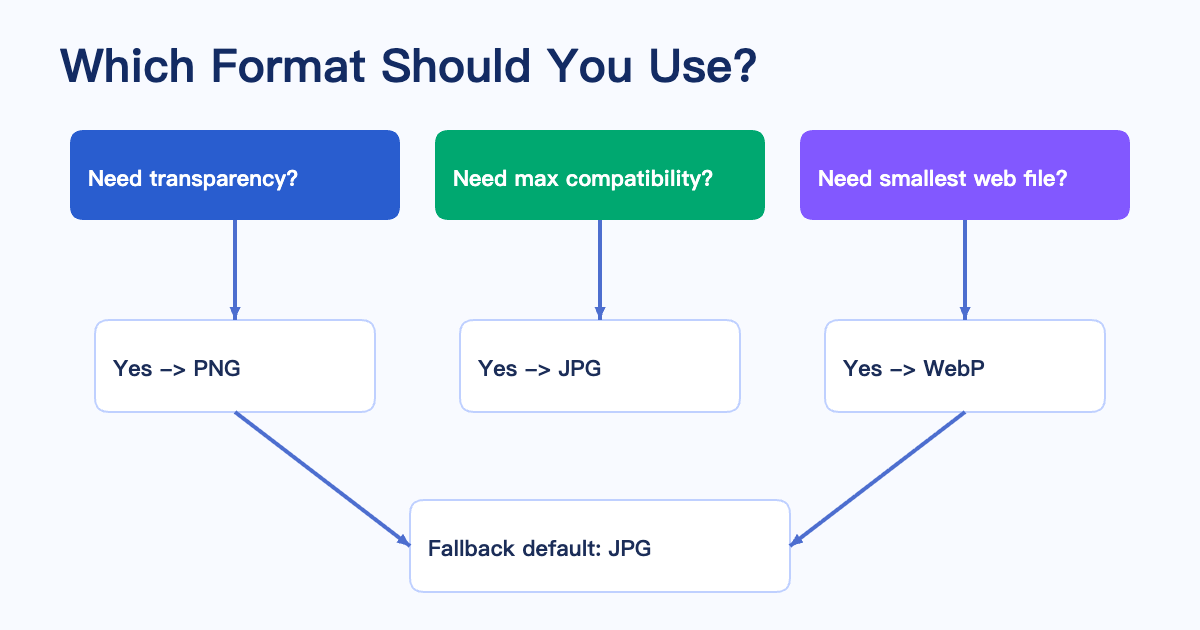
- Need maximum compatibility: JPG
- Need transparency: PNG
- Need smallest web size: WebP (only if platform supports it)
Format Choice by Real Scenario
Choosing the right format before upload reduces trial-and-error. Use this rule set when you need a fast decision.
Profile Photo
Use JPG unless the platform explicitly requests PNG. Most profile photo systems optimize JPG internally and expect this as the default input.
Product Listing Image
Use JPG for standard product photos on white backgrounds. Use PNG only if you need transparency for cutout visuals. If the platform creates blurry previews, upload a higher-quality JPG and avoid over-compression.
Blog Cover or SEO Social Preview
If the image includes text, test PNG and JPG side-by-side. PNG can keep text edges cleaner, but JPG is usually smaller and more broadly accepted. A good middle ground is a high-quality JPG with careful compression.
Messaging and Team Collaboration Tools
Most chat tools support JPG and PNG very reliably. WebP support is improving, but it is not universal across all desktop clients, mobile clients, and embedded previews.
Final Checklist Before Re-upload
- Use JPG unless transparency is required
- Keep size below platform limit
- Use clean English file names
- Check required dimensions
- Retry in another browser if needed
Step-by-Step Recovery Workflow (2 Minutes)
If you are under time pressure, follow this sequence exactly. It is designed for people who just need the upload to work without deep debugging.
- Duplicate the original file so you keep a safe backup.
- Convert the duplicate to JPG, unless transparency is strictly needed.
- Compress once to hit a practical size target such as 1MB to 3MB.
- Rename the file using simple characters, for example
product-photo-01.jpg. - Re-upload in an incognito window to avoid extension interference.
This process removes the top failure causes in one pass: format mismatch, oversize files, incompatible file names, and browser-side disruptions.
Common Mistakes That Waste Time
Trying Multiple Formats Randomly
Many people switch between HEIC, PNG, and WebP without checking platform requirements first. This creates noise and uncertainty. Use a deterministic fallback order instead: JPG first, PNG only when alpha is required, WebP only when support is verified.
Over-Compressing Too Early
Aggressive compression can introduce blur and force extra rework later. Reduce size gradually. Aim for upload success first, then refine quality if needed.
Ignoring Dimensions Until the End
Some platforms validate dimensions before they validate file size. If required ratio is strict, crop first and compress second. This order is usually faster and avoids repeated attempts.
Assuming One Successful Upload Means All Pages Will Work
Different parts of the same product can have different validators. A marketplace gallery, profile avatar, and banner uploader may each have different limits. If one location works and another fails, compare the exact field requirements instead of redoing everything.
Team and Operations Tip
If your team uploads images daily, document a small internal policy: preferred formats, max file size, naming convention, and dimension presets. A one-page standard can eliminate repeated upload support tickets and keep content operations predictable.
A practical baseline policy is: JPG default, PNG for transparency, max 3MB for general uploads, and standardized names with lowercase letters plus dashes. This simple standard works for most website and app teams.
Extended FAQ
Why does my HEIC image look fine on my phone but fail online?
HEIC support depends on the server pipeline, not just your local device. Your phone can preview HEIC perfectly, while a remote upload service may still reject it. Convert to JPG for maximum compatibility.
Why did file size increase after conversion?
Some conversions, especially JPG to PNG, can increase size because PNG uses lossless compression. If size is a priority, prefer JPG and tune quality until you reach the target size.
Does stripping metadata help upload success?
Yes, in some edge cases. Broken EXIF or color profile metadata can trigger processing errors in older systems. Re-exporting or converting to a fresh JPG often removes problematic metadata.
Can I keep transparency and still get broad compatibility?
PNG is usually the safest transparent format across platforms. If you do not need transparency, switch to JPG for better compatibility and smaller files.
Should I always use WebP because it is smaller?
Not always. WebP is great for web performance, but some upload forms, enterprise systems, and older editors still reject it. Use WebP only where support is verified.
What is the fastest universal rescue workflow?
Convert to JPG, compress once, use a clean file name, and keep a common dimension like 1200x1200 or 1200x630. This sequence resolves most upload failures in practice.
If you want the fastest default workflow: convert to JPG, compress once, and re-upload. That solves the majority of upload failures.
Ready to Compress Your Images?
Try our free online image compression tool. All processing happens in your browser - fast, private, and easy to use.
Related Articles
How to Rotate an Image 90° or 180° Online (Free & Fast)
Fix sideways or upside-down photos in seconds. Rotate any JPG, PNG, or WebP image 90° or 180° directly in your browser for free with no server upload.
How to Resize a PNG Online Without Losing Transparency
Resize a PNG online in three steps. Change exact pixel dimensions, keep the aspect ratio and transparent background, then download for free.
How to Make a Circular Profile Picture for Any Social Platform
Make a circular profile picture for Instagram, Discord, TikTok, YouTube, and more. Crop safely and download a transparent PNG for free.